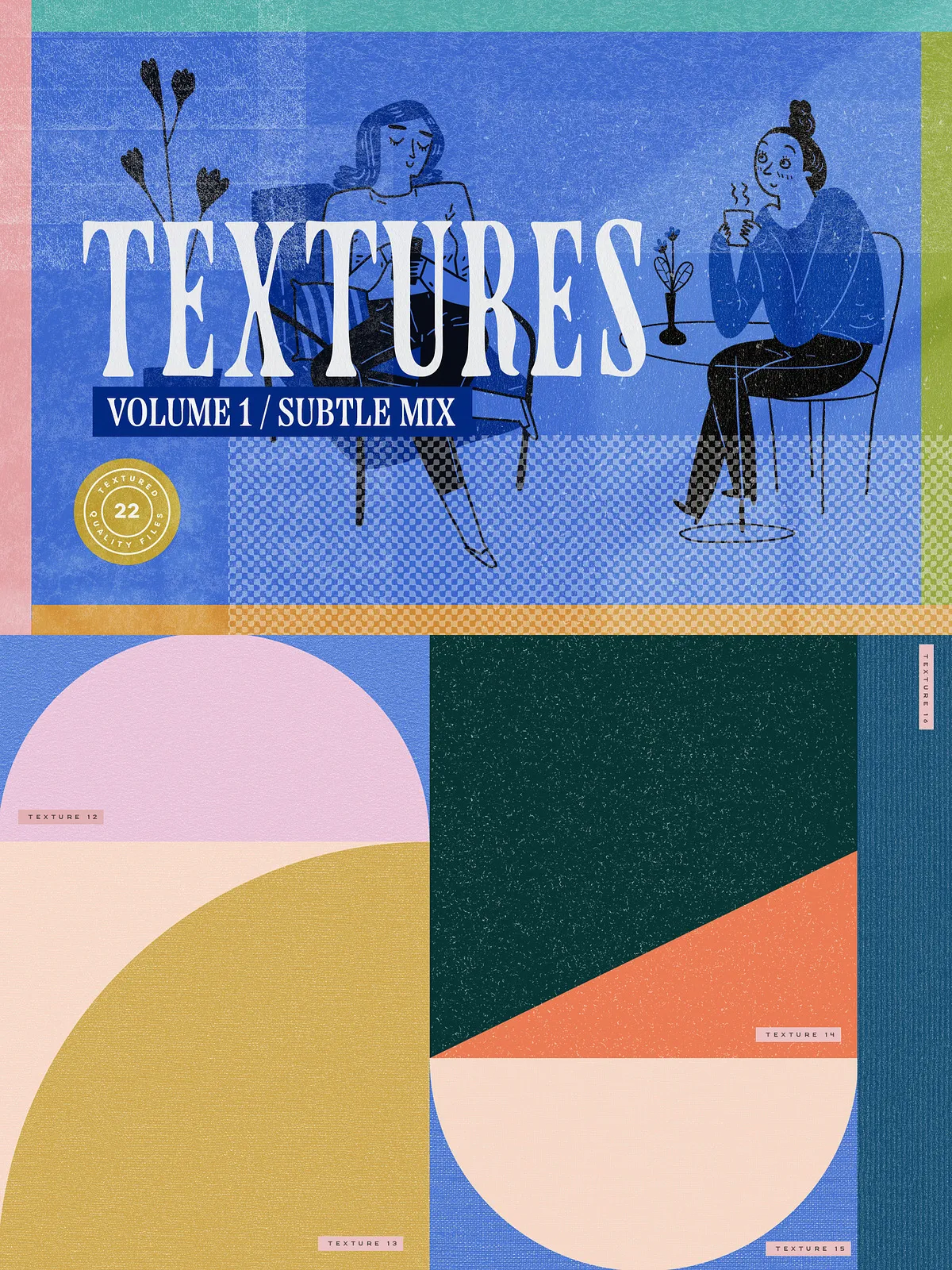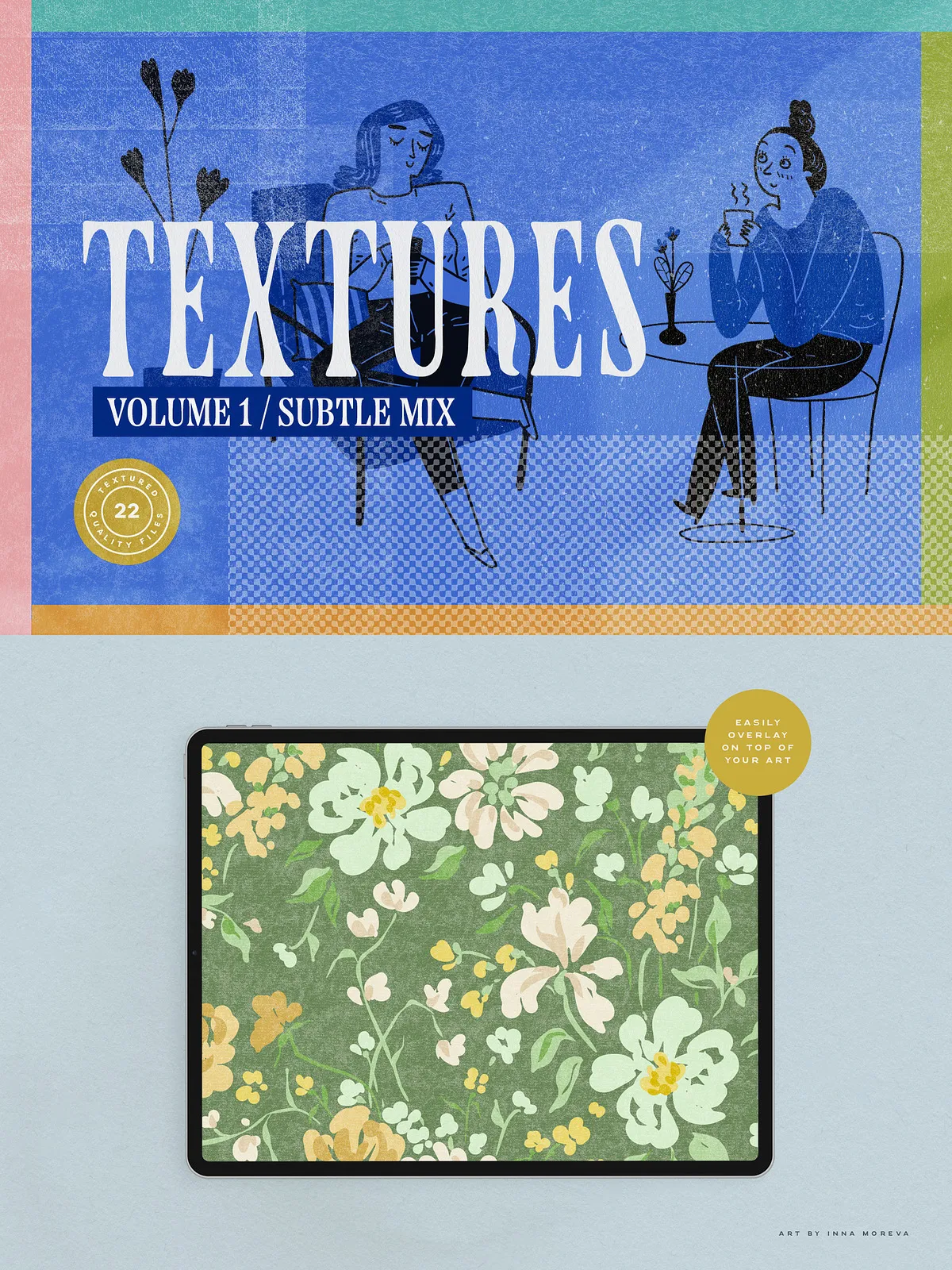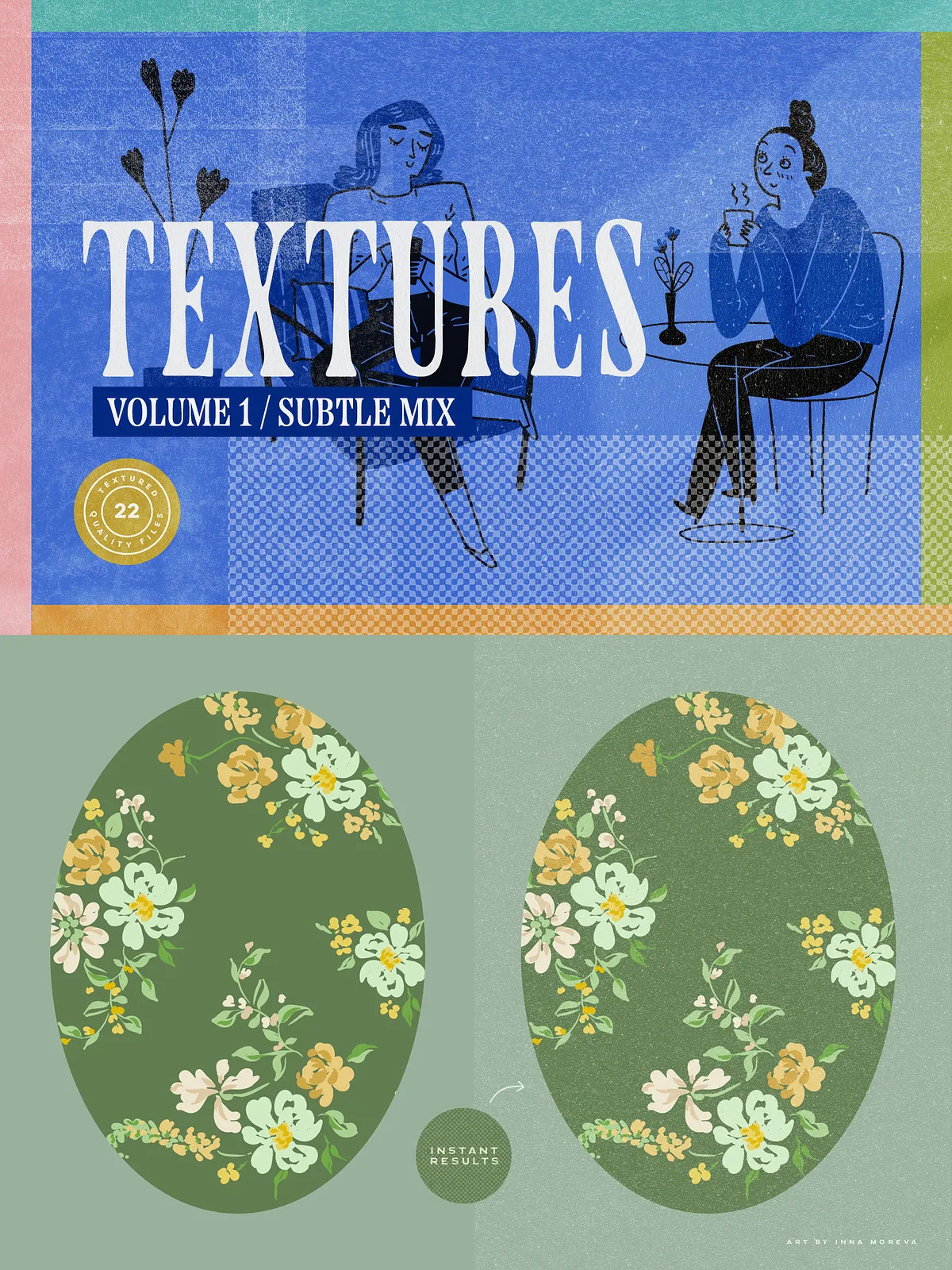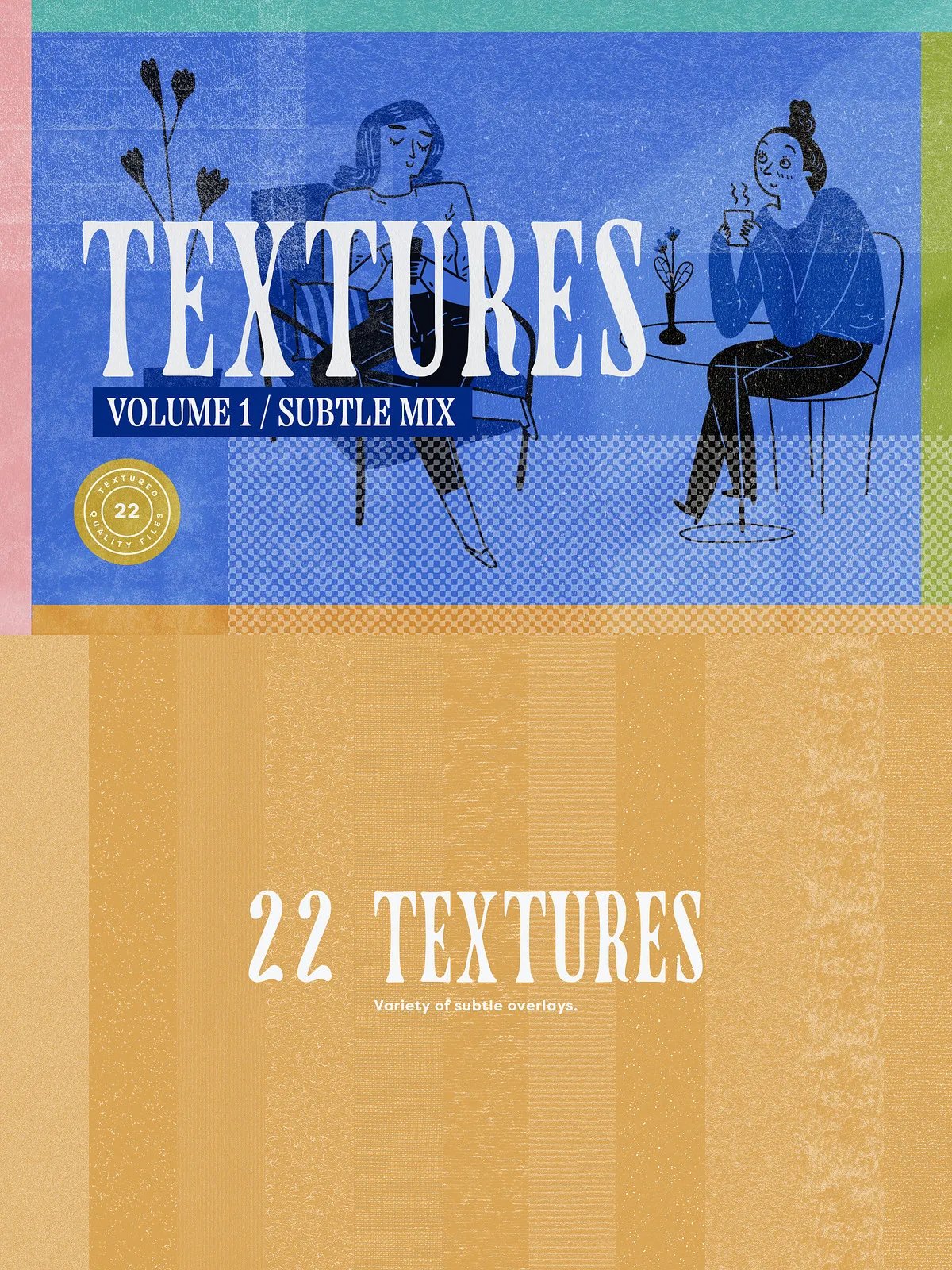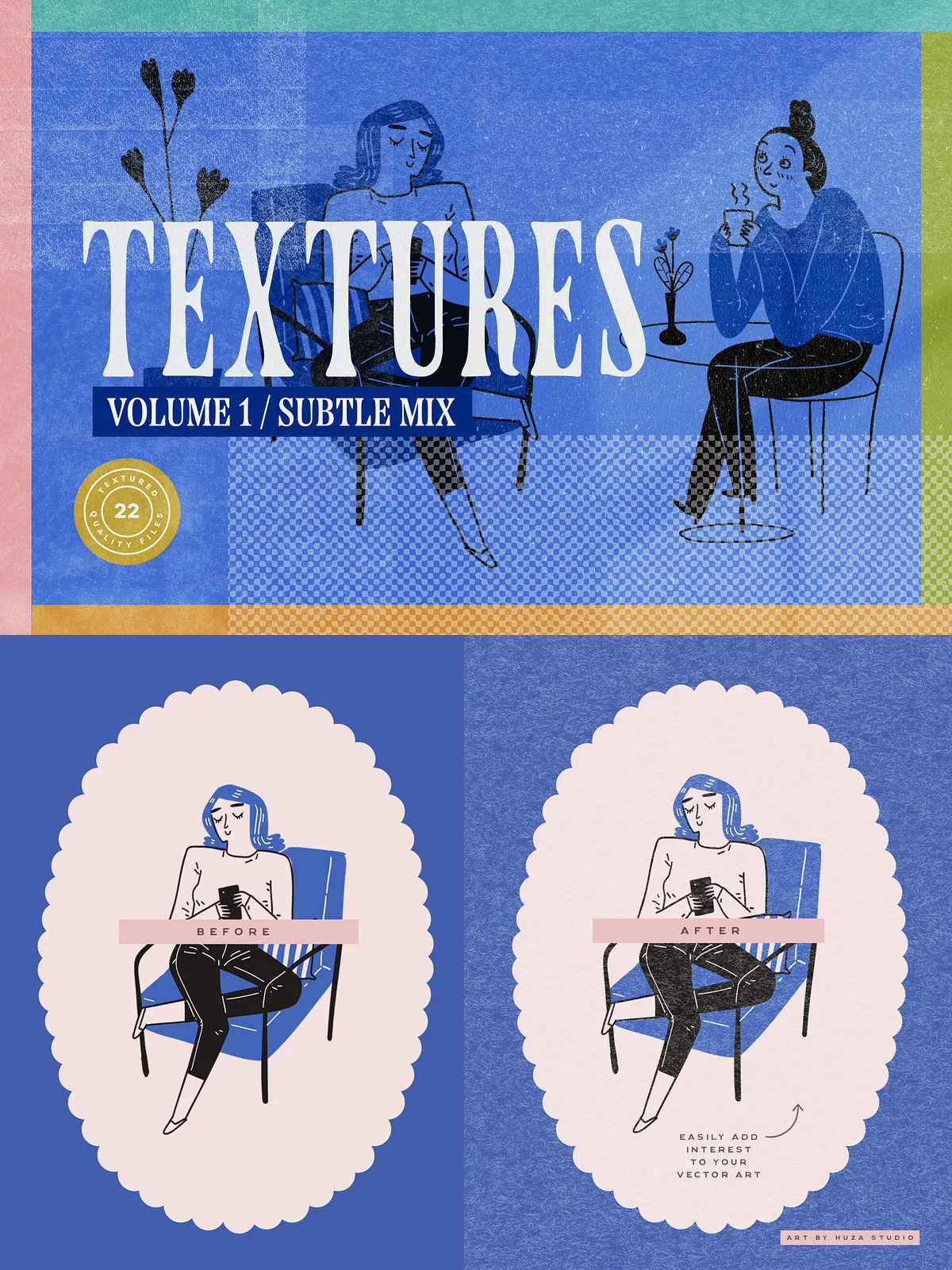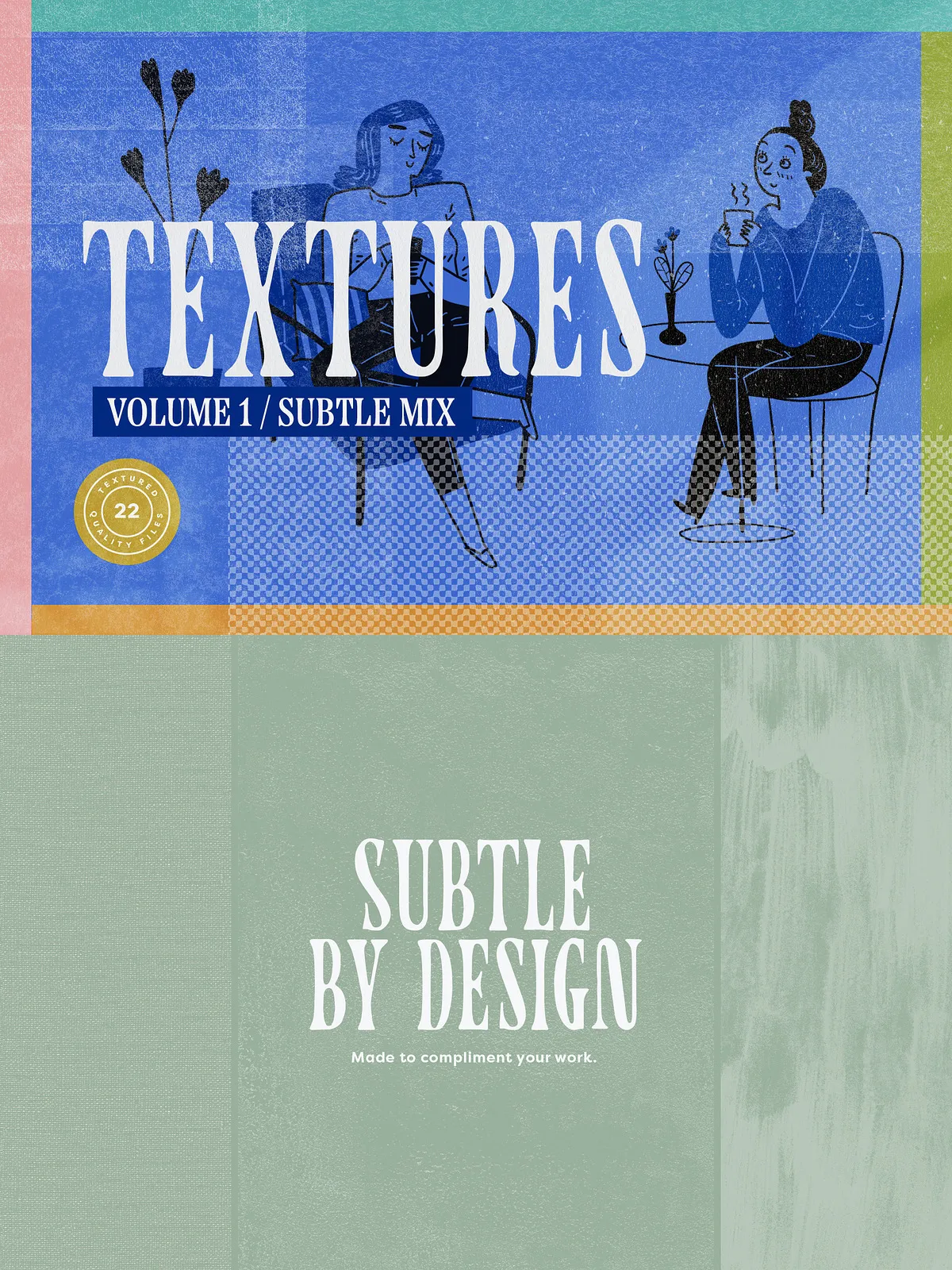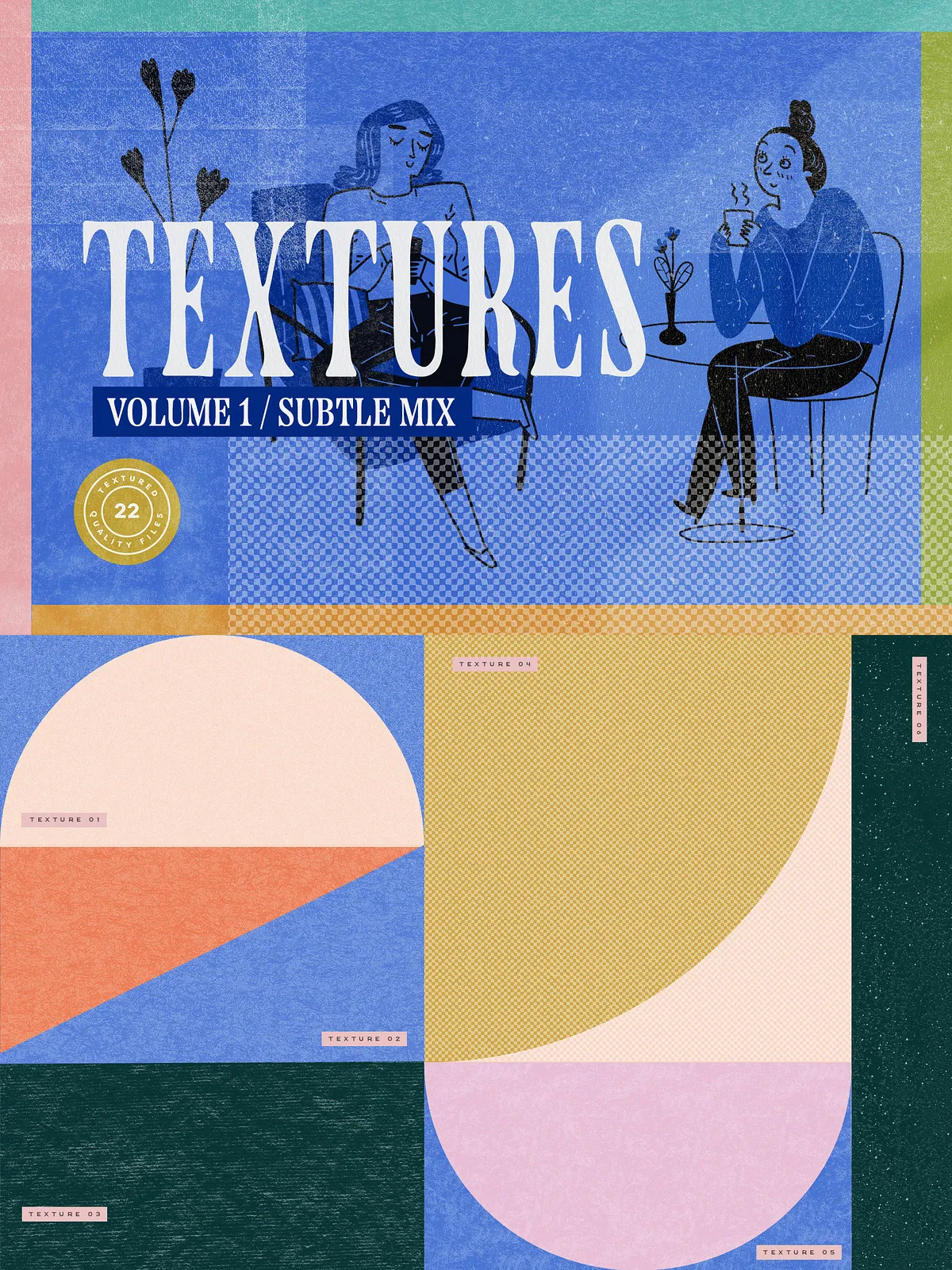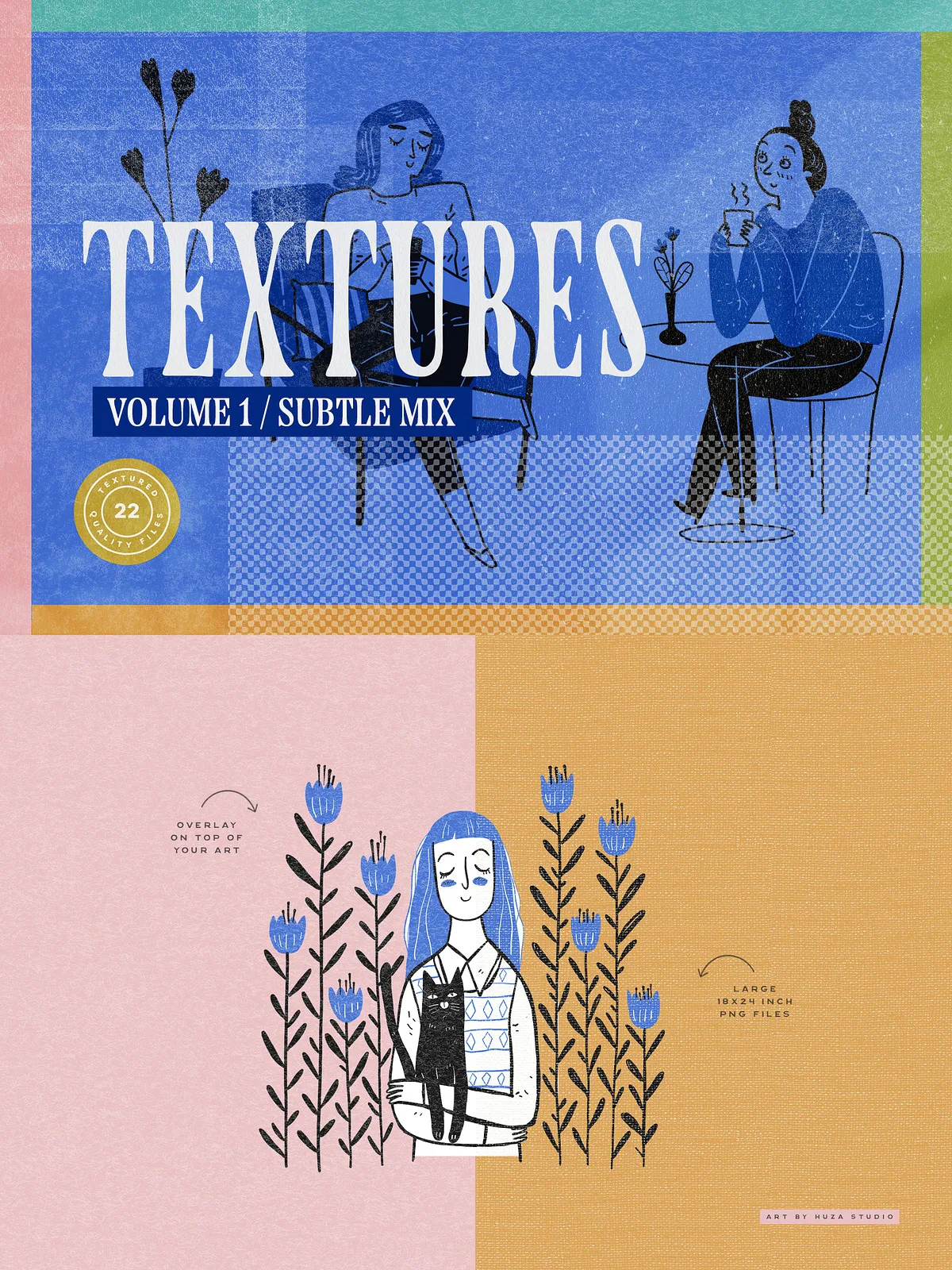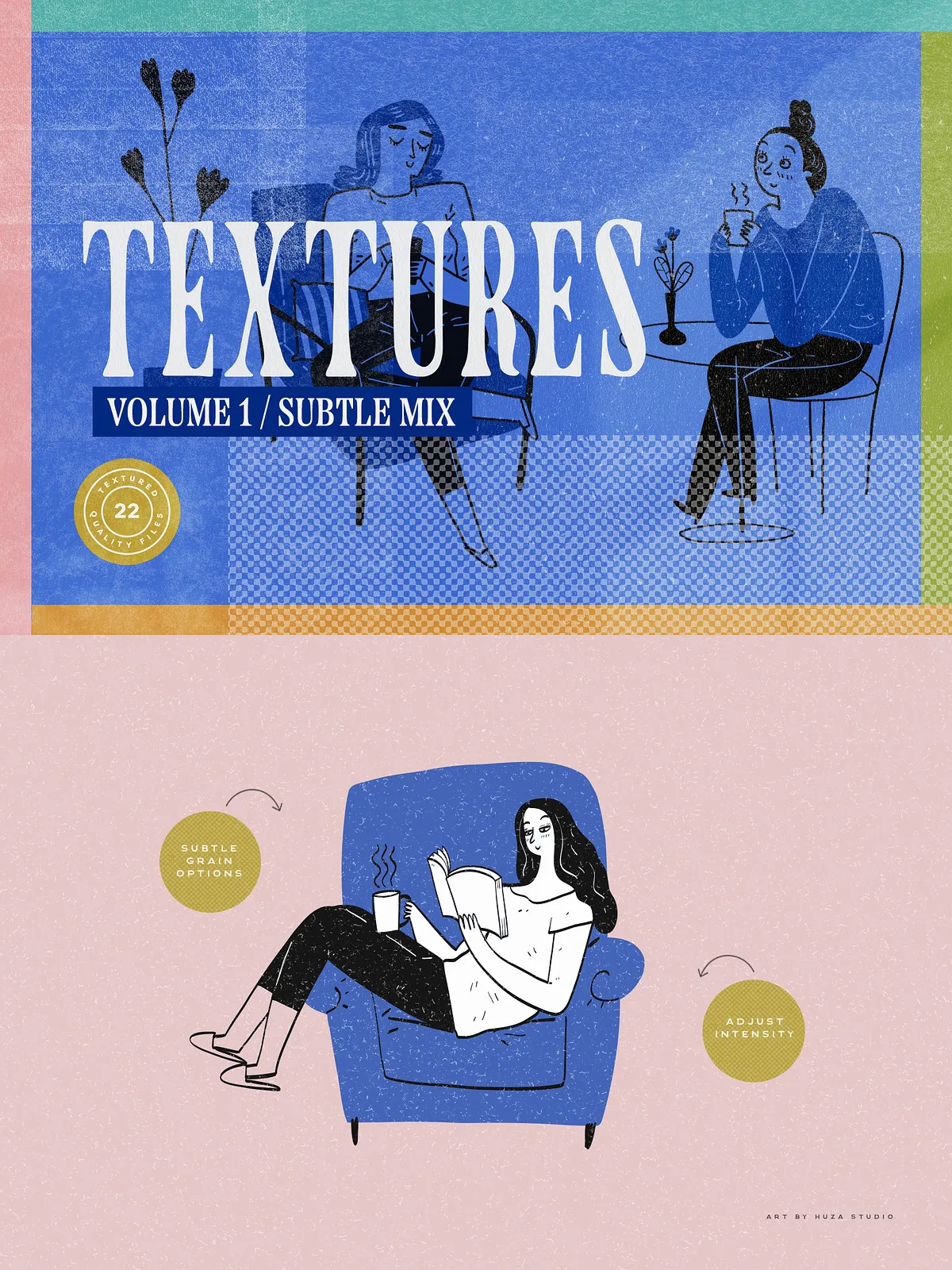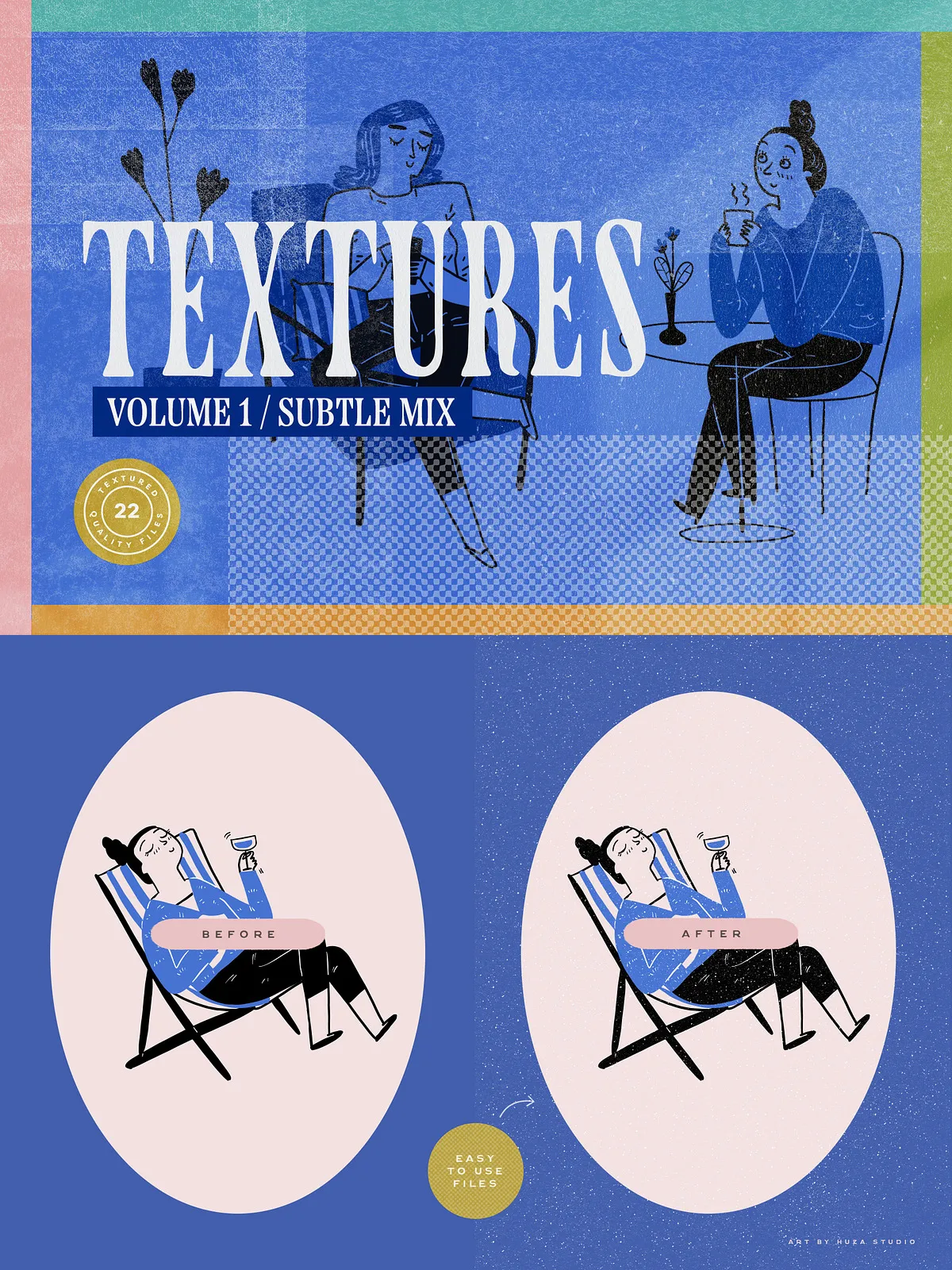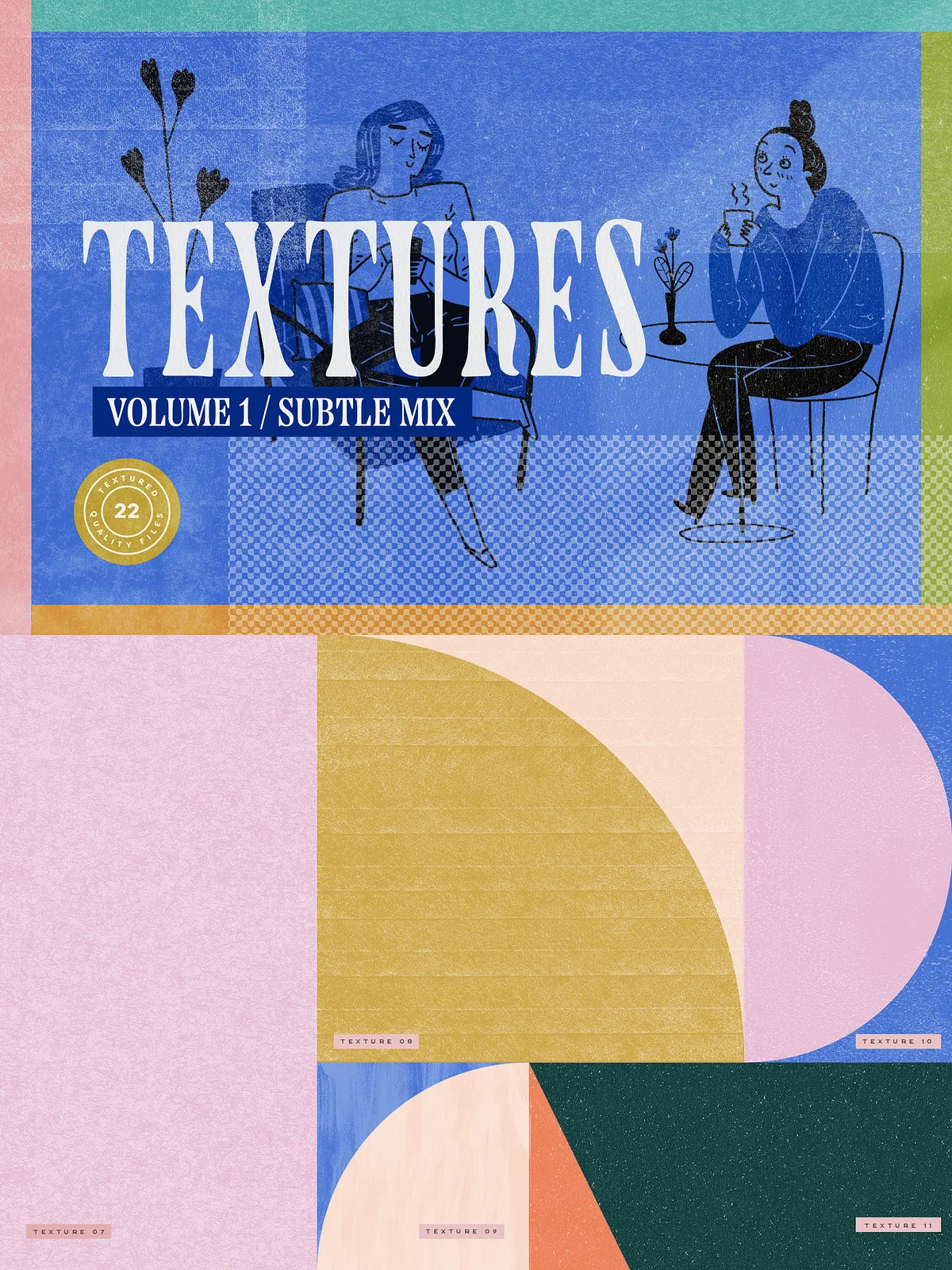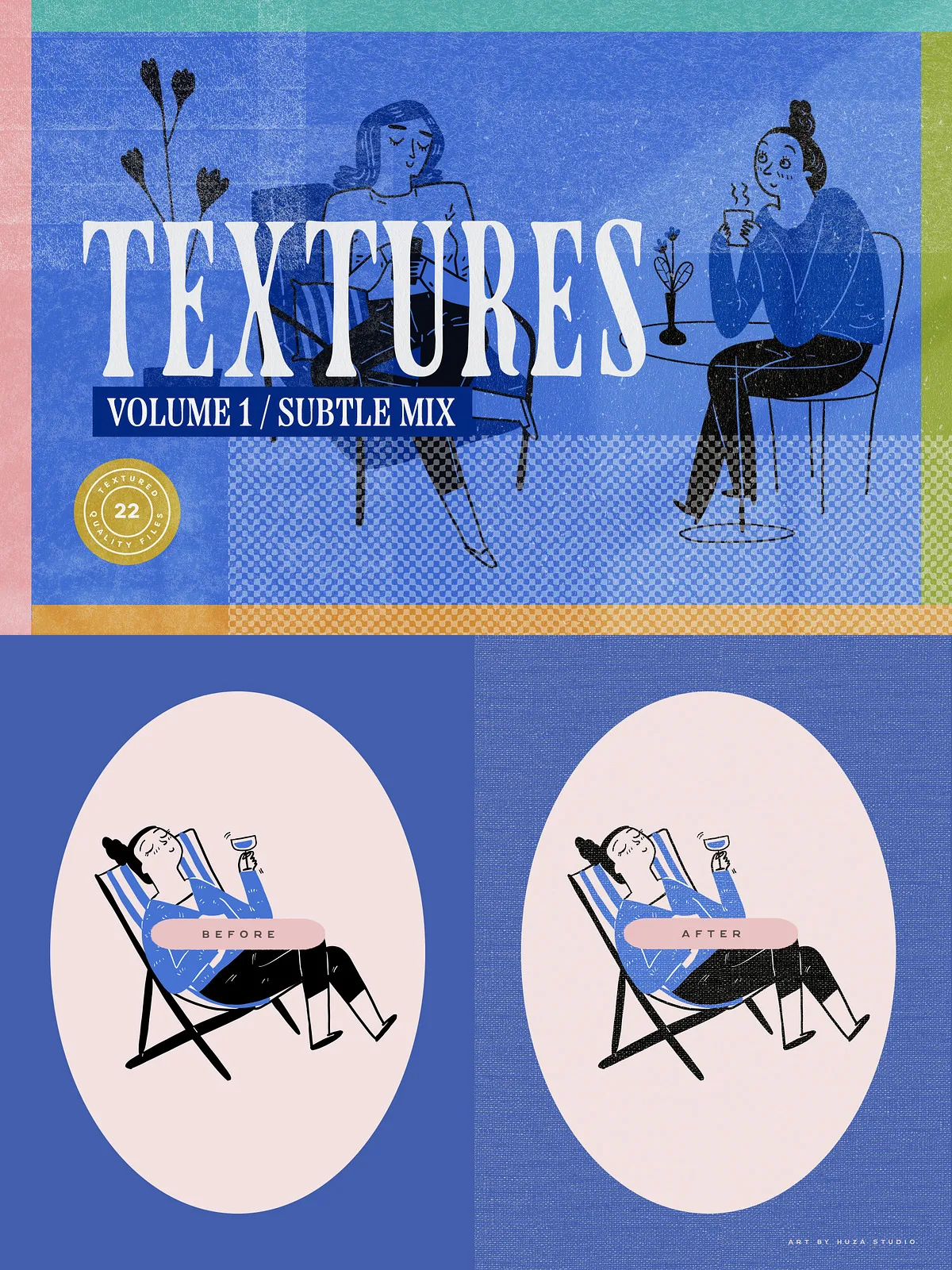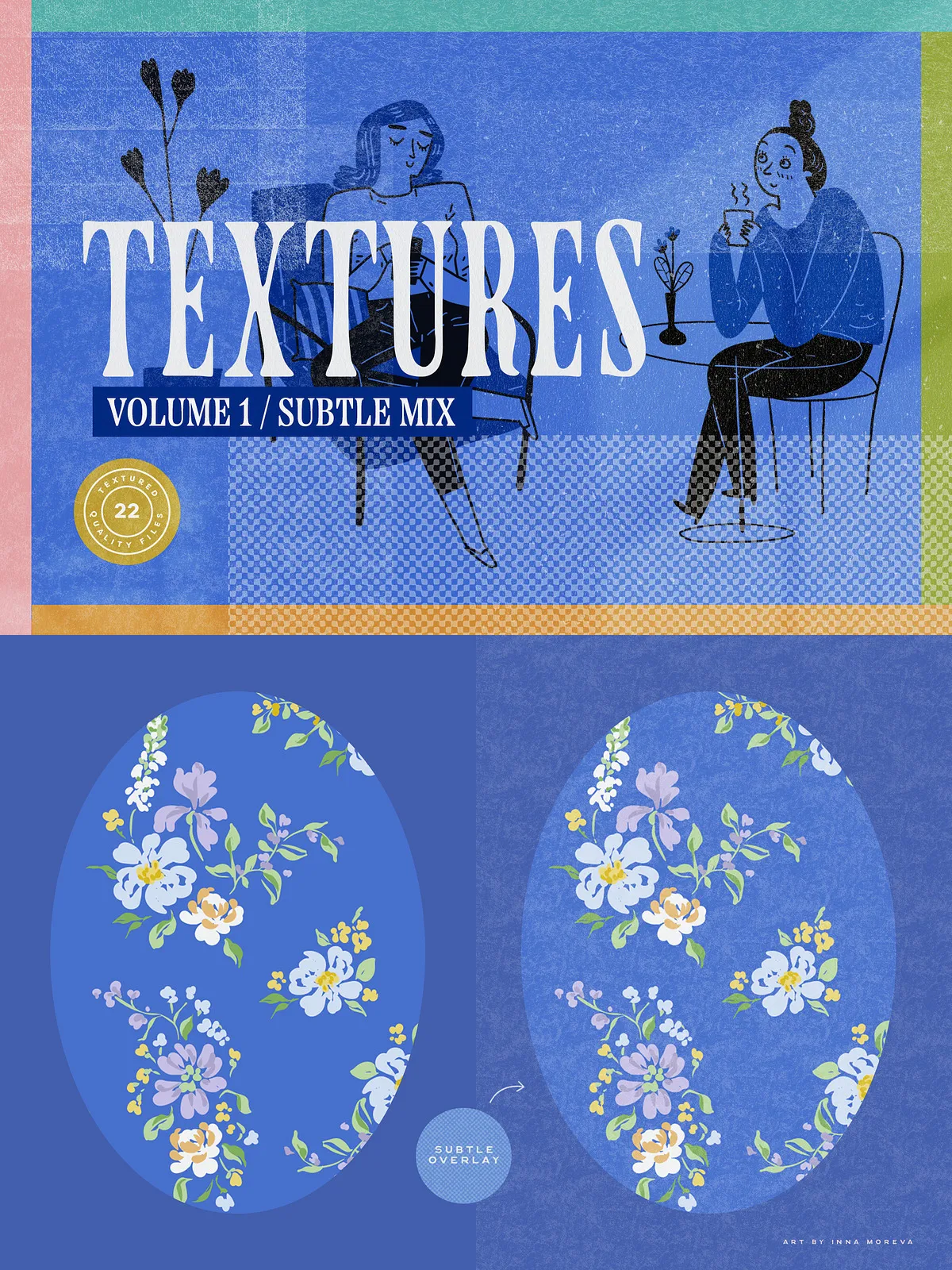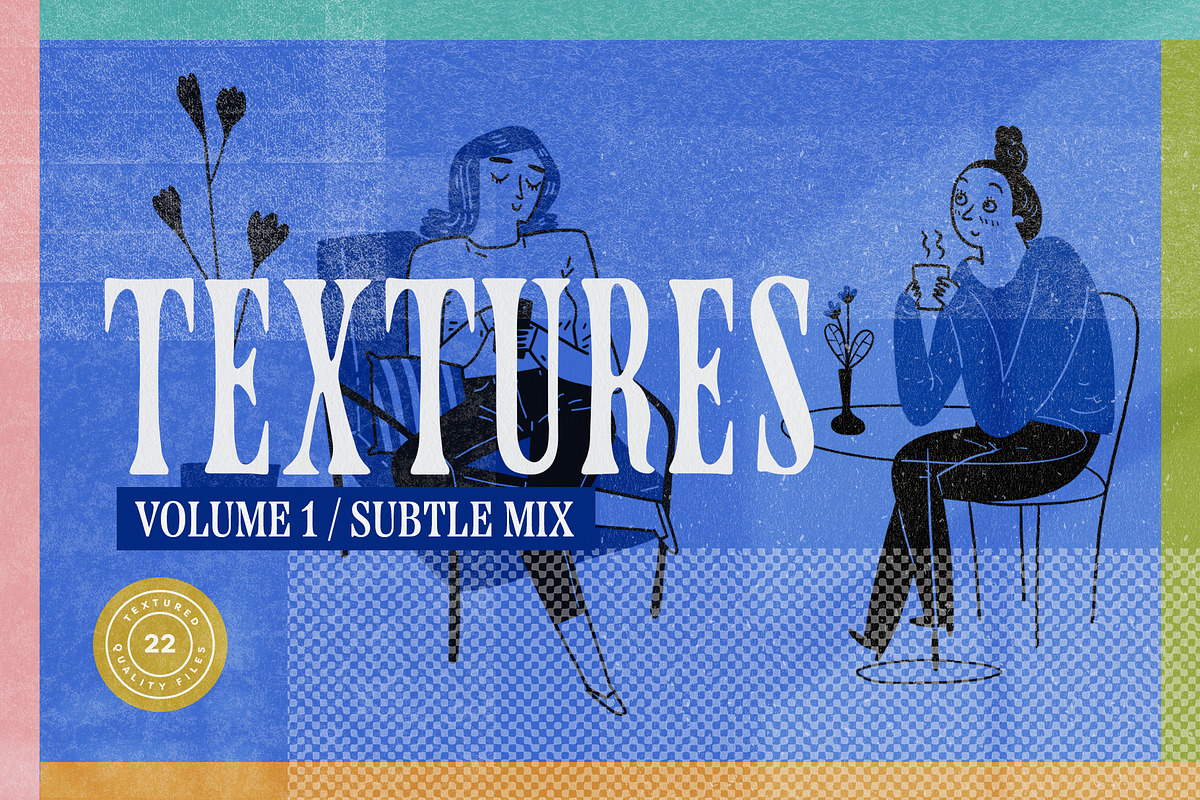

Texture Overlays Vol. 1 — Subtle Mix delivers a curated set of delicate, white texture overlays designed to add tactile character and handcrafted realism to your visual work. These see-through PNG overlays let you instantly impart paper grain, dust, fiber, and soft marks without masking the original artwork. Each overlay is optimized for both print and digital workflows so you can quickly enrich illustrations, posters, photo edits, branding projects, and social graphics.
What’s Included
Files & Formats
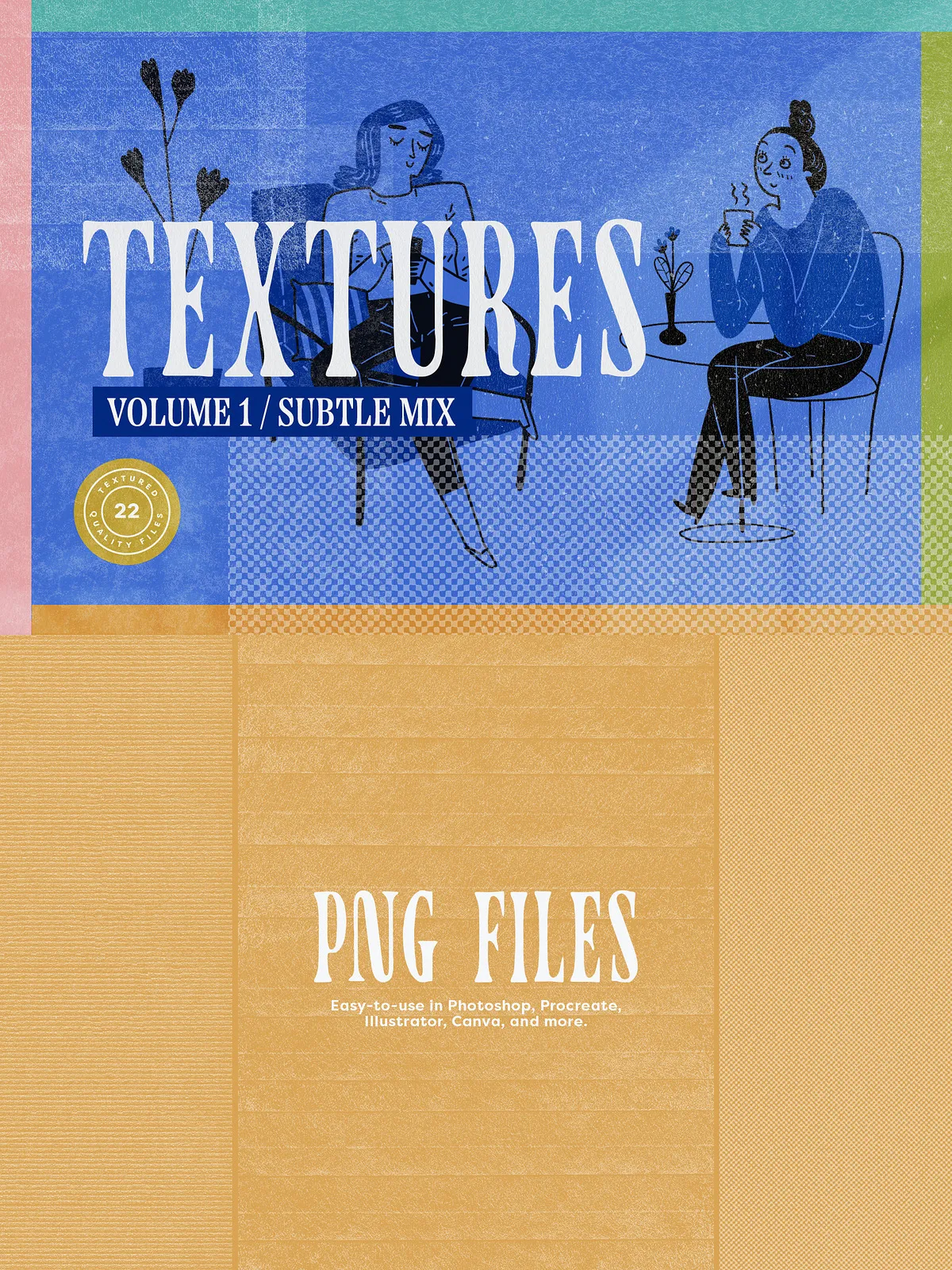
- 22 white texture overlay files in PNG format with transparent backgrounds.
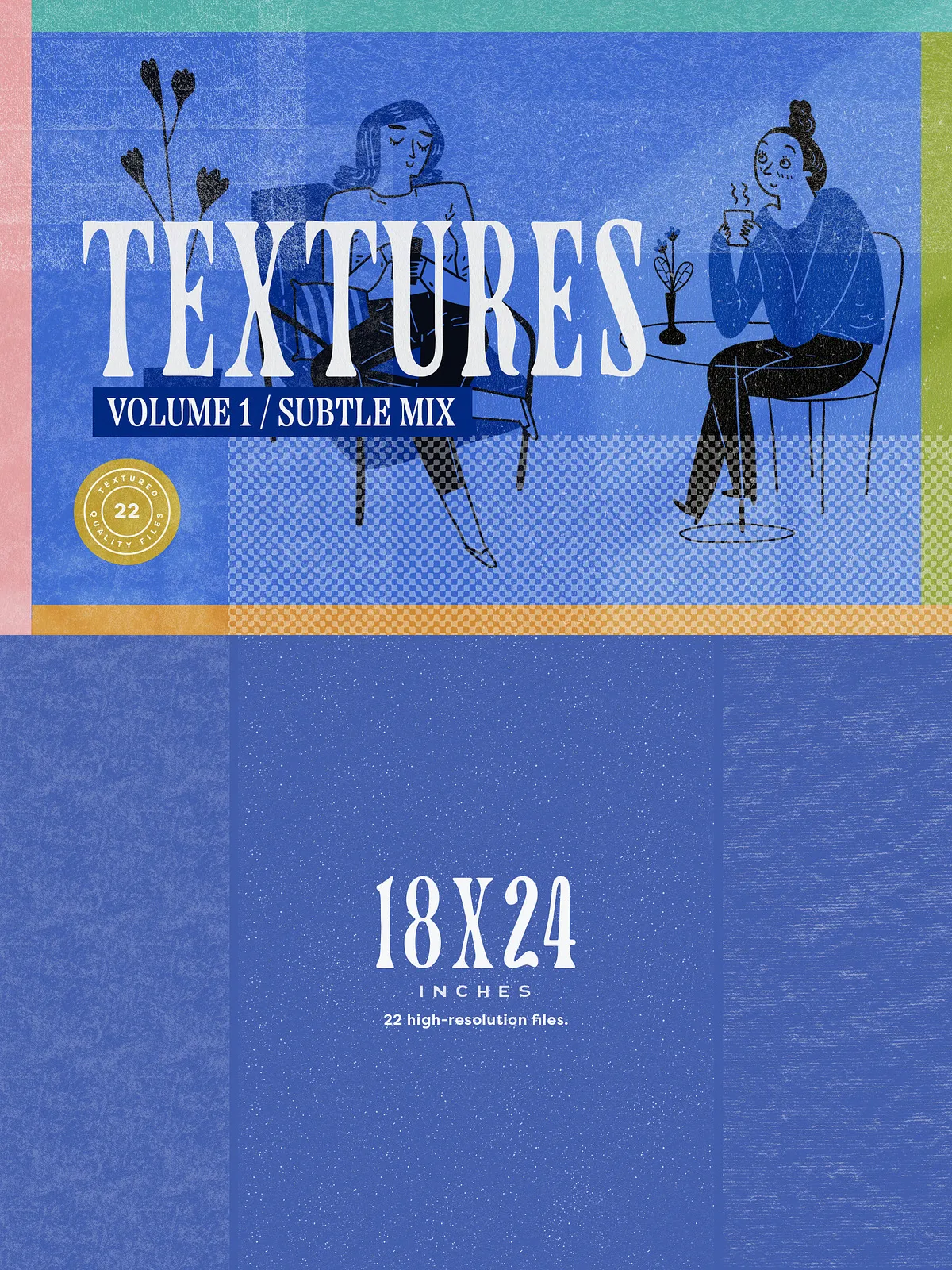
- Each file is 18 × 24 inches at 300 DPI (5,400 × 7,200 px), vertical orientation.
- Files are delivered ready-to-use and import cleanly into Photoshop, Procreate, Canva, Affinity, and most design software.
Key Features
- High resolution: 300 DPI ensures crisp print output and detailed texture in close-ups.
- Transparent PNGs: seamless layering over any color, photo, or vector artwork.
- Subtle, handmade look: textures are designed to enhance rather than overpower your composition.
- Flexible: adjust opacity, blend modes, and stacking order to achieve a wide range of effects.
How to Use
Basic Application
Drag a PNG overlay above your artwork layer, then adjust opacity to taste. For gentle surface character, set opacity between 10–40%. To create a more pronounced tactile effect, raise opacity to 40–85% or combine multiple overlays at low opacity. Use layer masks to reveal texture selectively around focal elements.
Blend Modes & Tips
- Multiply and Darken: use to add subtle shadowing and grain without brightening highlights.
- Screen or Lighten: ideal for light leaks or paper marks on dark backgrounds.
- Overlay or Soft Light: enhance contrast and midtone texture with natural results.
- Layering: stack two or three different overlays at low opacity to create unique, complex surfaces.
Software-Specific Guidance
Photoshop
Import the PNG overlay, place it above your content, and test blend modes (Overlay, Soft Light, Multiply). Use Smart Objects to preserve editability and non-destructive transformations. Apply Gaussian Blur sparingly if you need to soften the texture for background applications.
Procreate
Import PNGs into a layer above your illustration. Use layer opacity and blend modes to integrate texture. For precise control, erase or mask areas with a textured brush to blend edges naturally.
Canva
Upload the PNG files to your Canva library and drag them over your design. Adjust transparency from the toolbar.
Suggested Uses & Project Examples
- Illustrations: add handmade surface detail to digital paintings and vector art.
- Branding: introduce subtle texture to identity systems for premium tactile feel.
- Mockups & Packaging: layer textures over product shots to simulate printed paper surfaces.
- Social & Web Graphics: use low-opacity overlays to unify visual feeds and campaign assets.
- Editorial & Posters: create depth in typographic layouts and full-bleed artwork.
Delivery, Licensing & Compatibility
Files are delivered as PNGs in a single download archive. They are royalty-free for personal and commercial design work unless otherwise stated on the product page; consult the included license text for restrictions on resale and redistribution. These PNG overlays are compatible with major design tools (Photoshop, Procreate, Affinity, Illustrator, Canva, and common web editing platforms).
Practical Recommendations
- For print, export with original resolution (5,400 × 7,200 px) to preserve grain detail.
- When designing for screens, compress or resize as needed but avoid aggressive downsampling that removes texture fidelity.
- Use masks to apply texture selectively and preserve legibility of type and brand elements.
- Experiment with color overlays: tint a white overlay with a subtle hue (Hue/Saturation or Color overlay) to match a seasonal palette while keeping tactile detail.