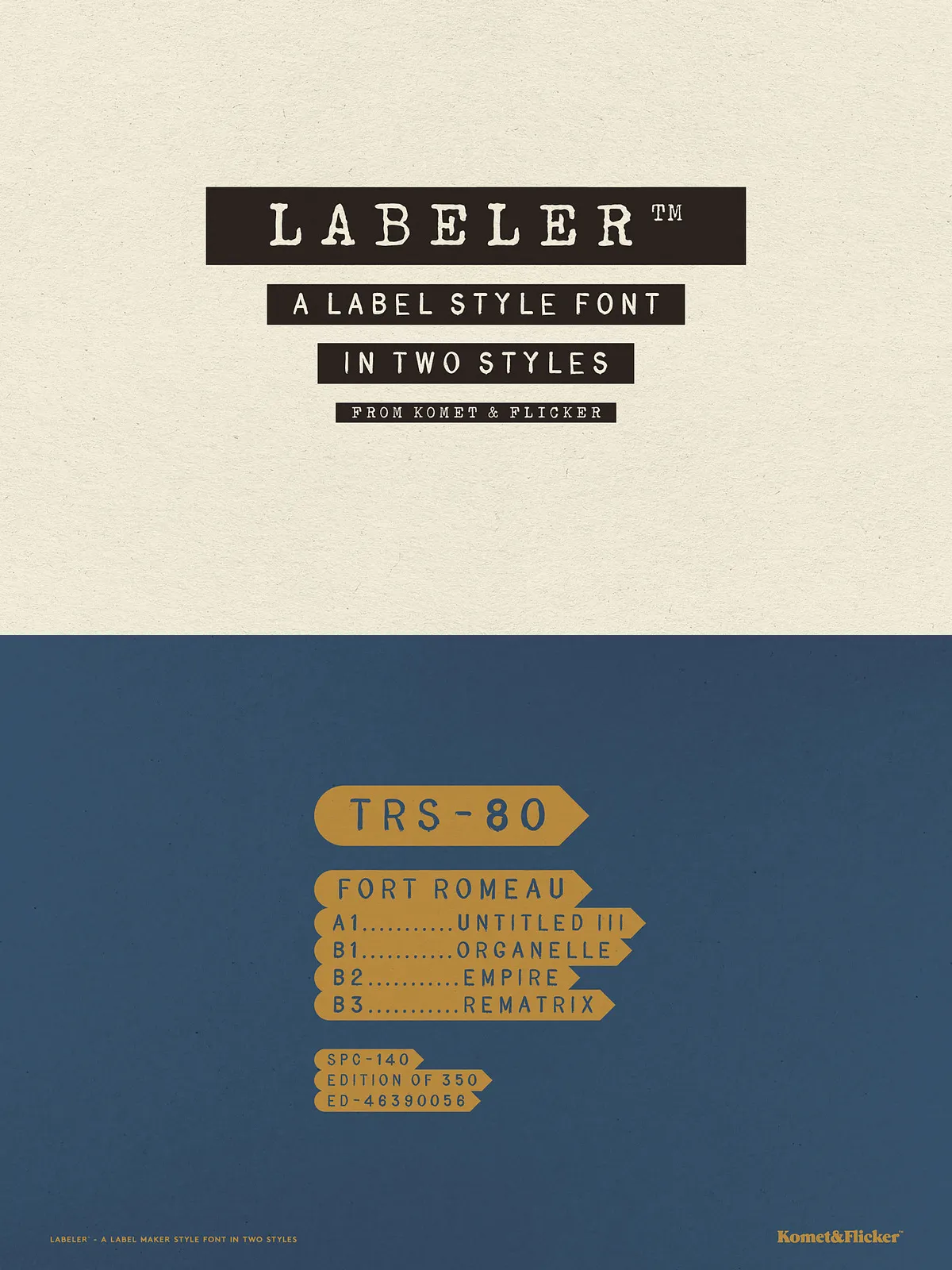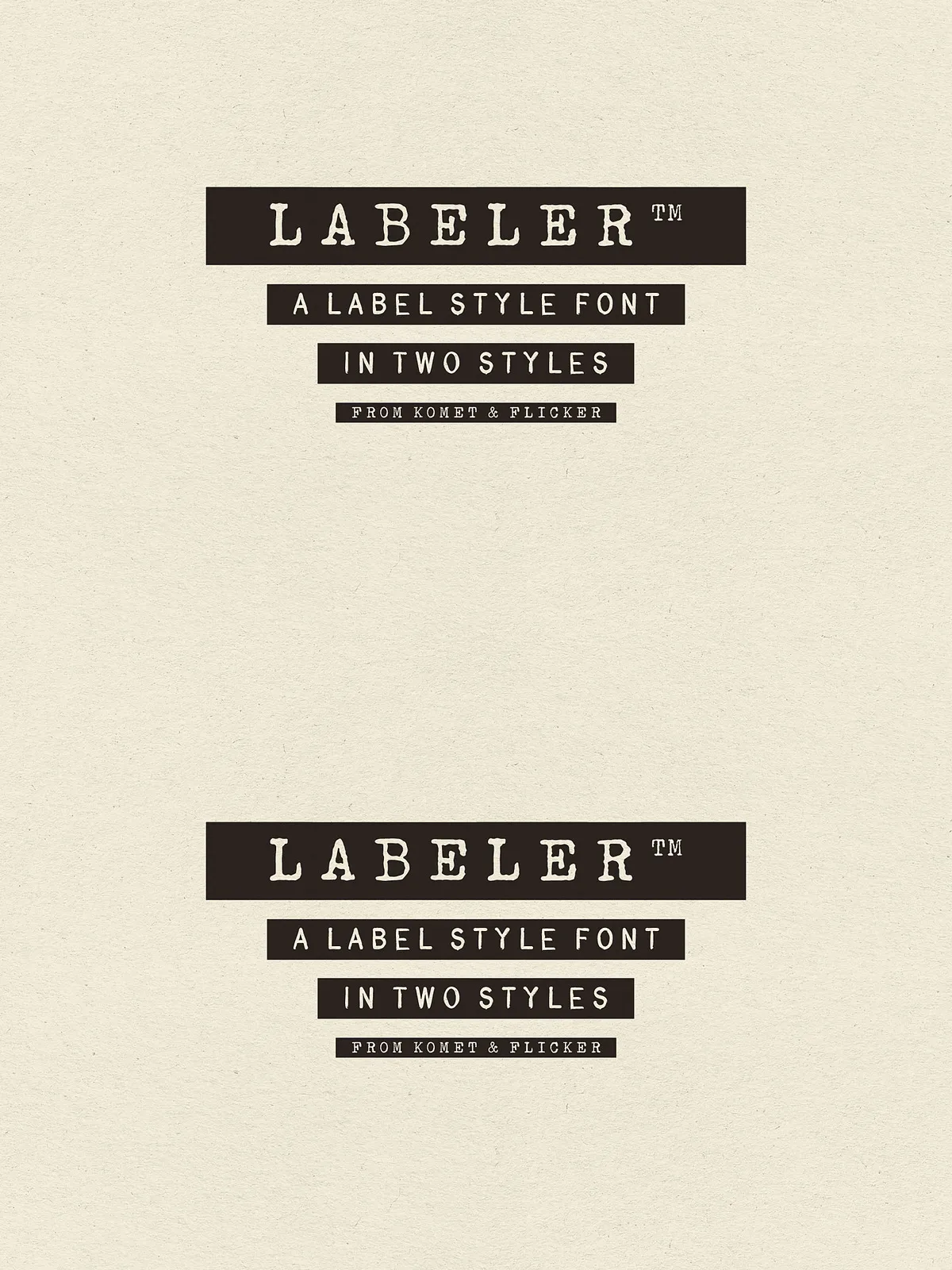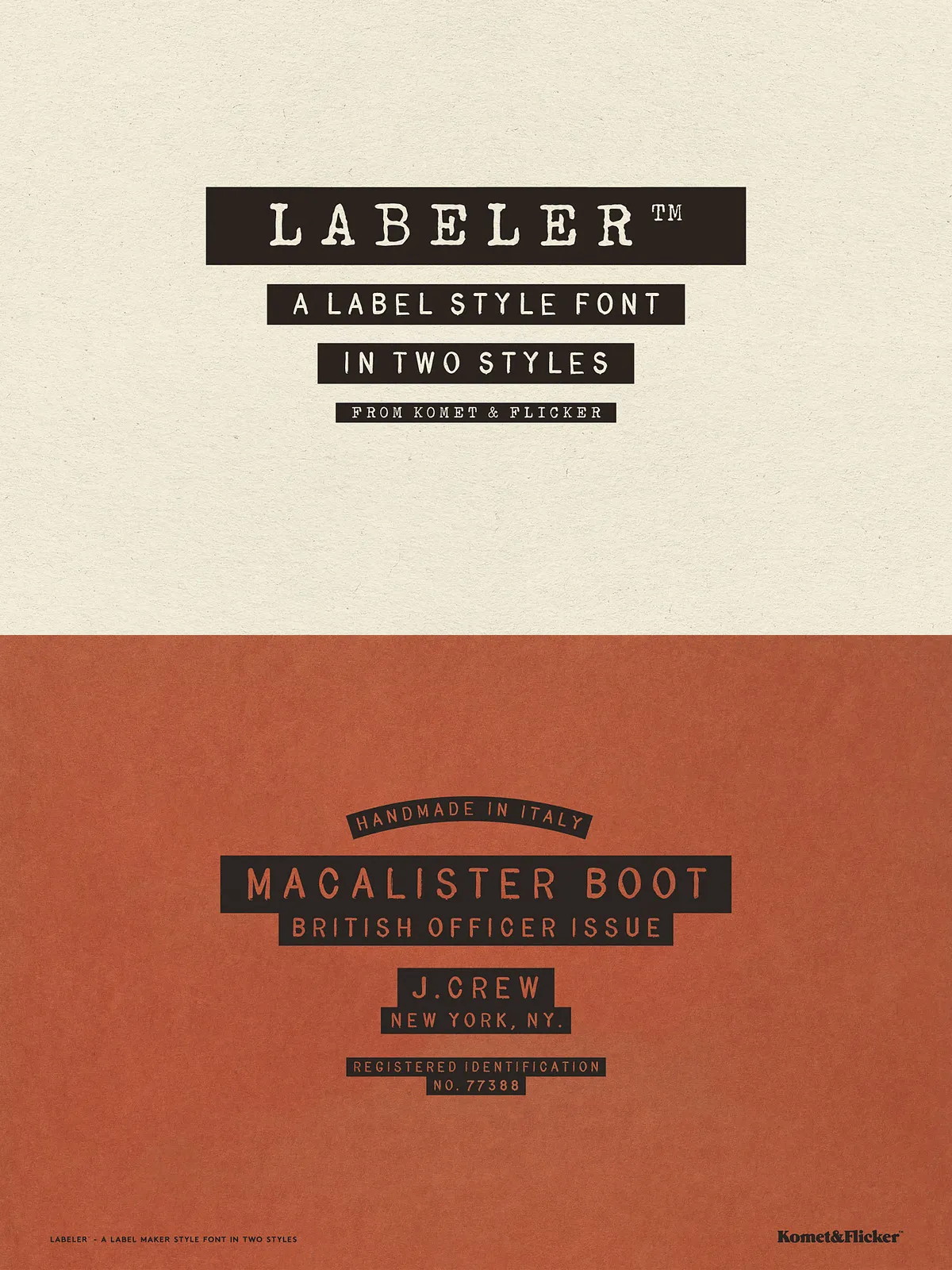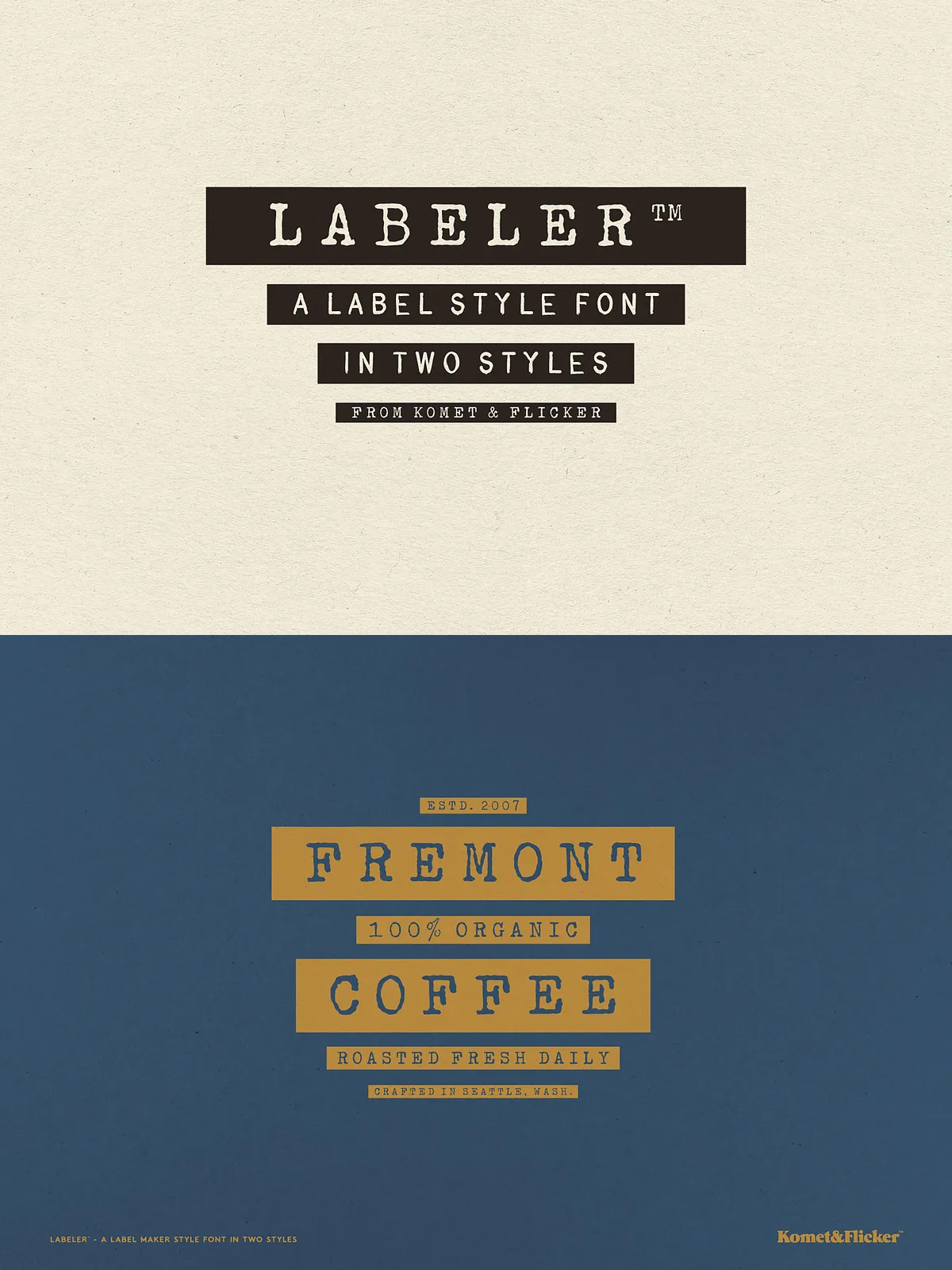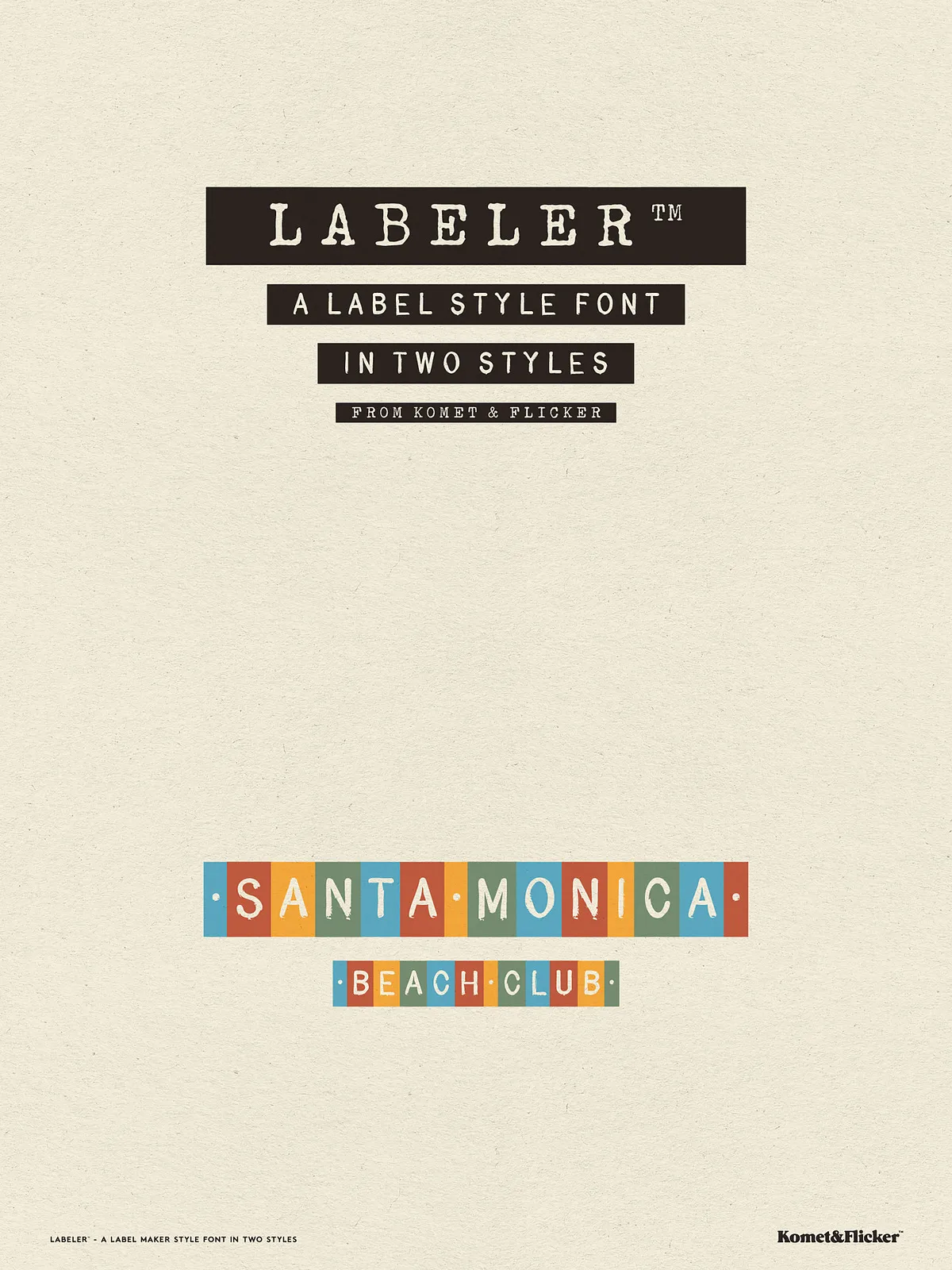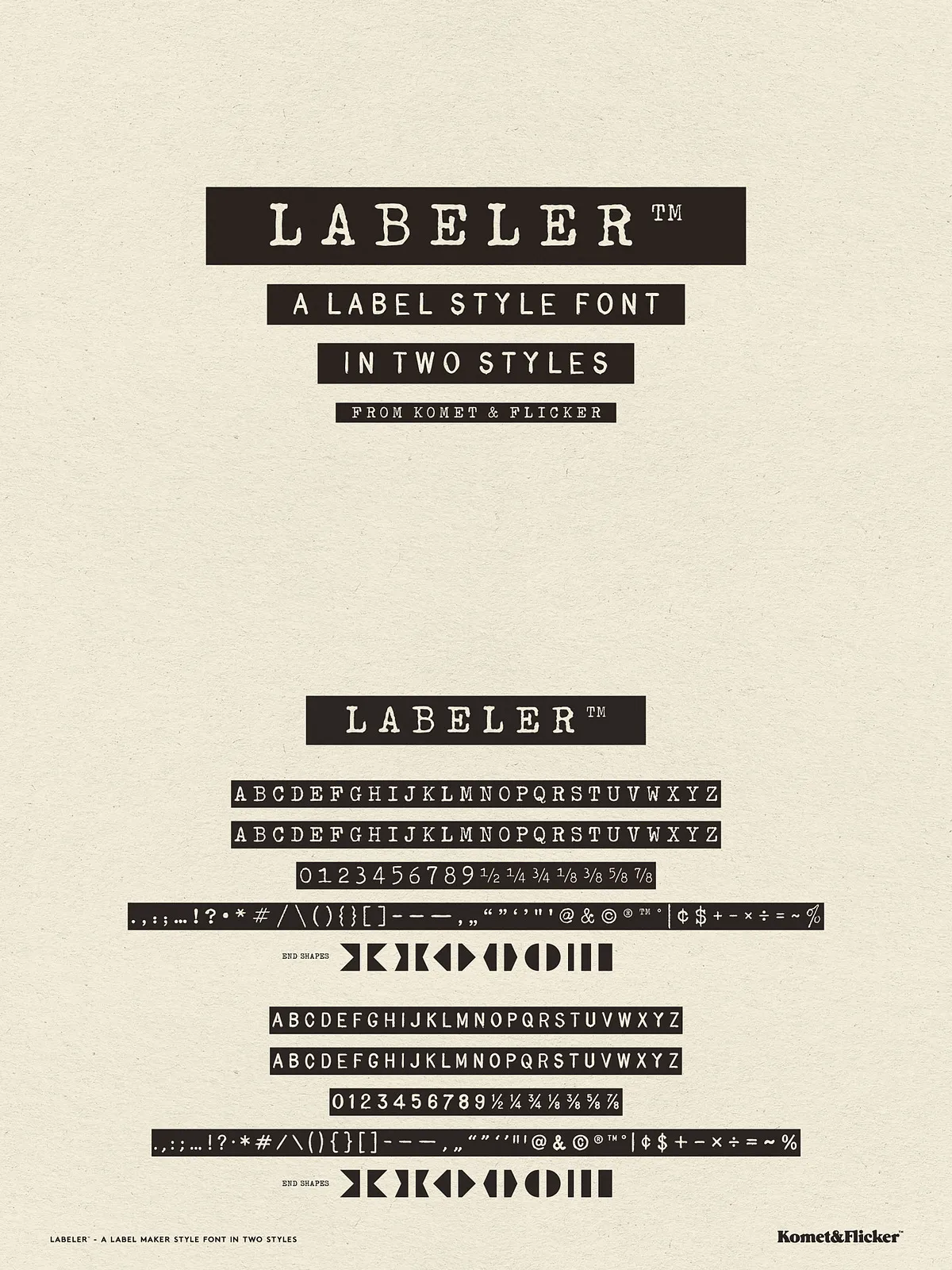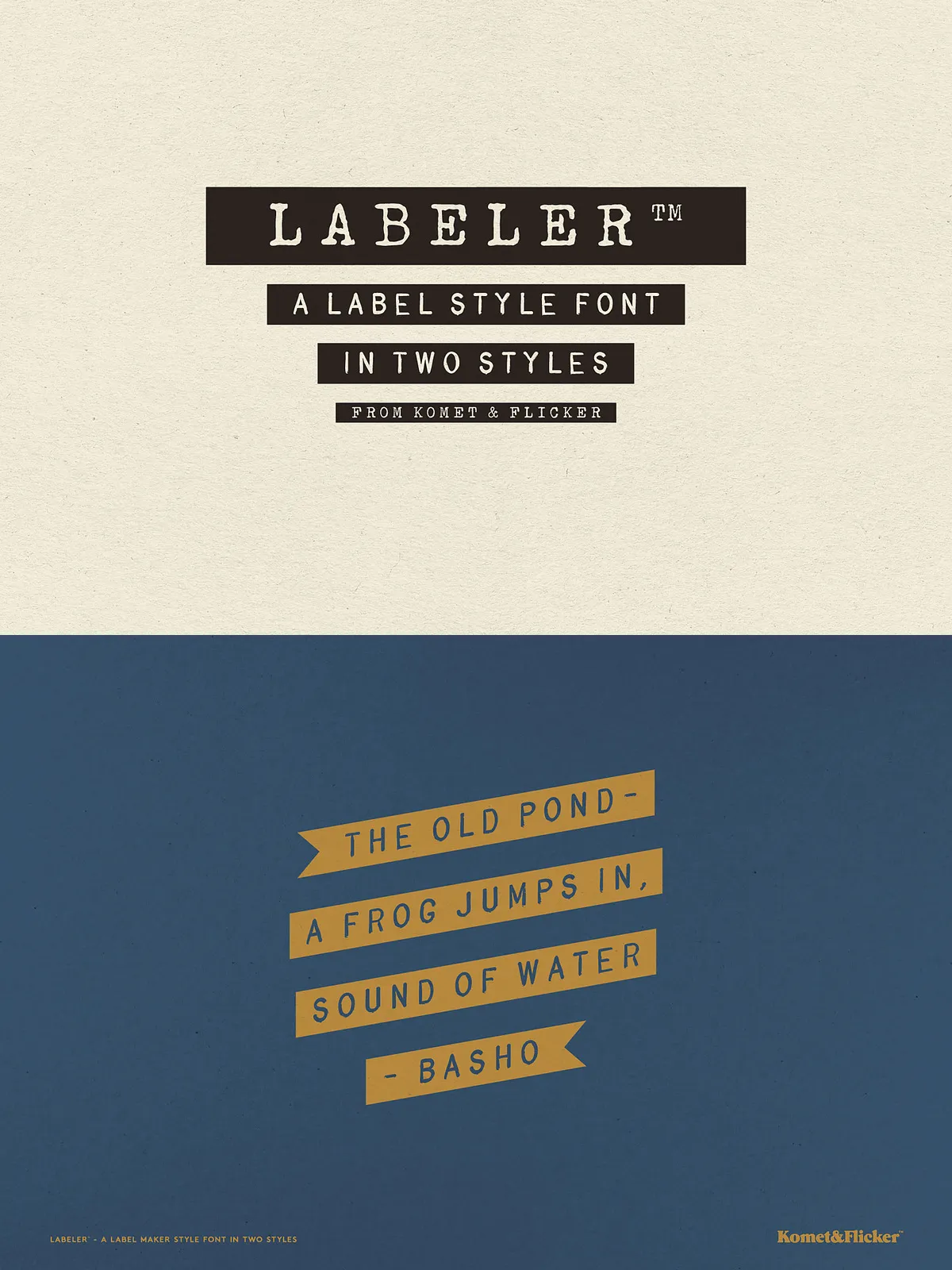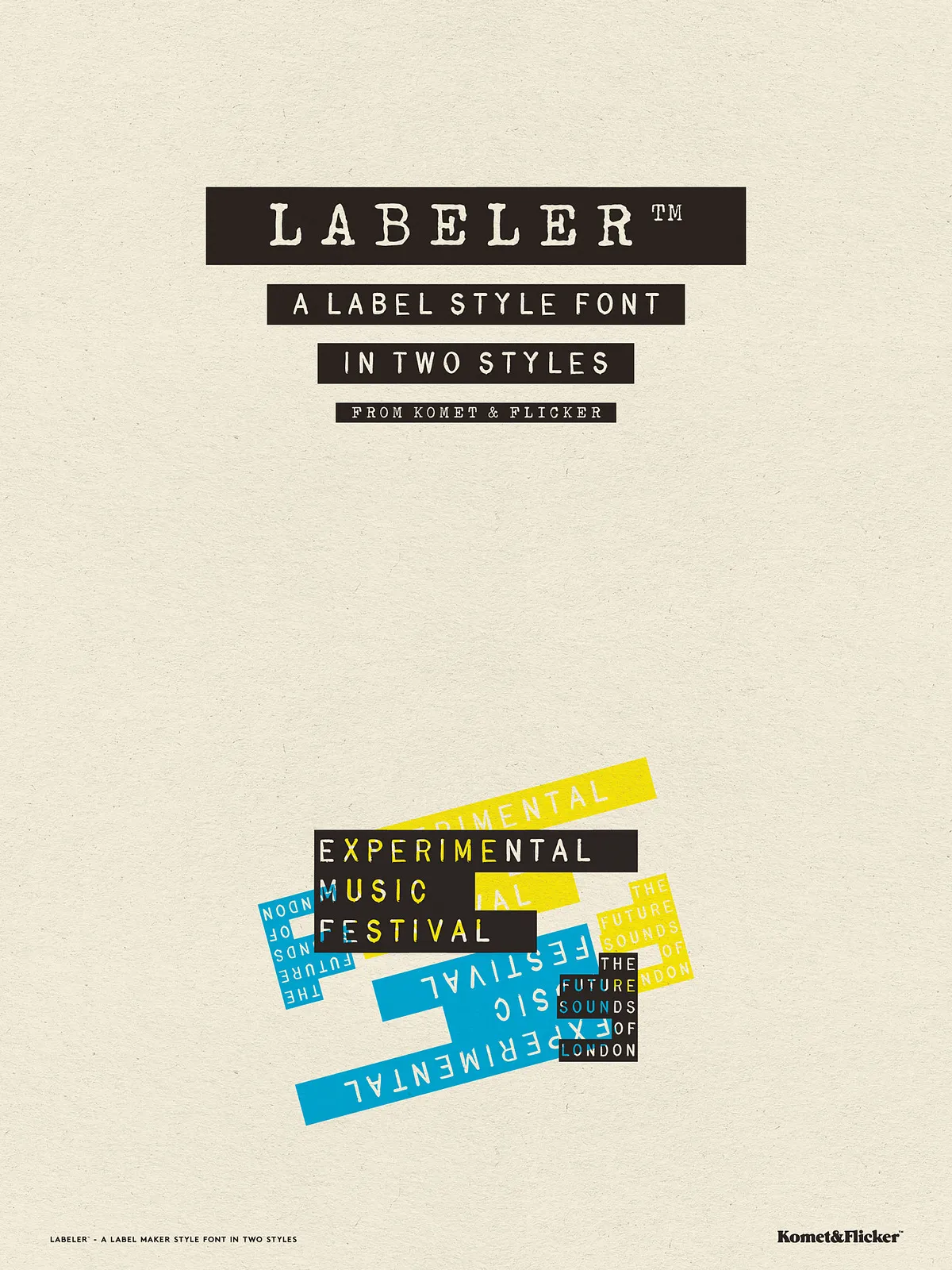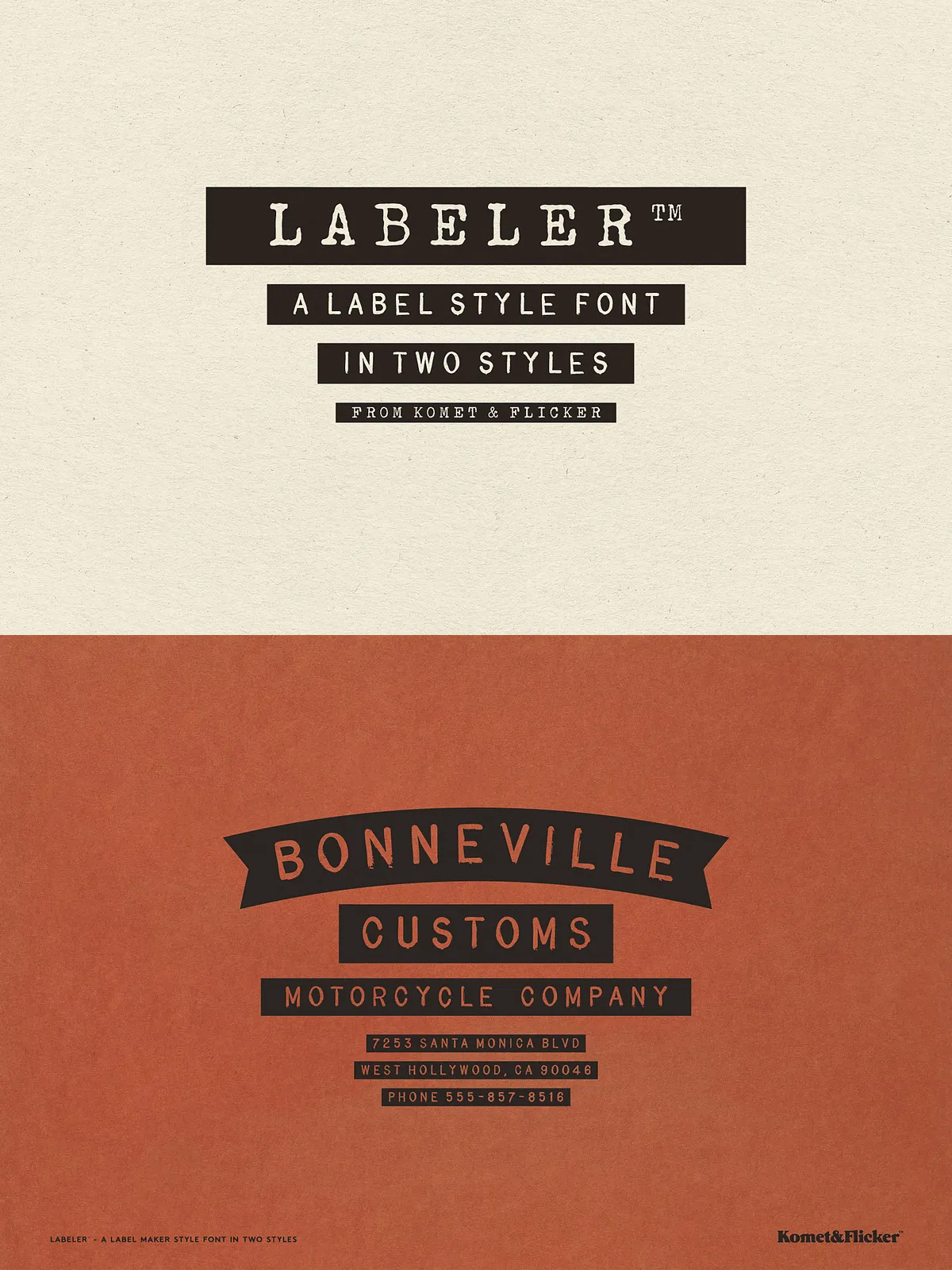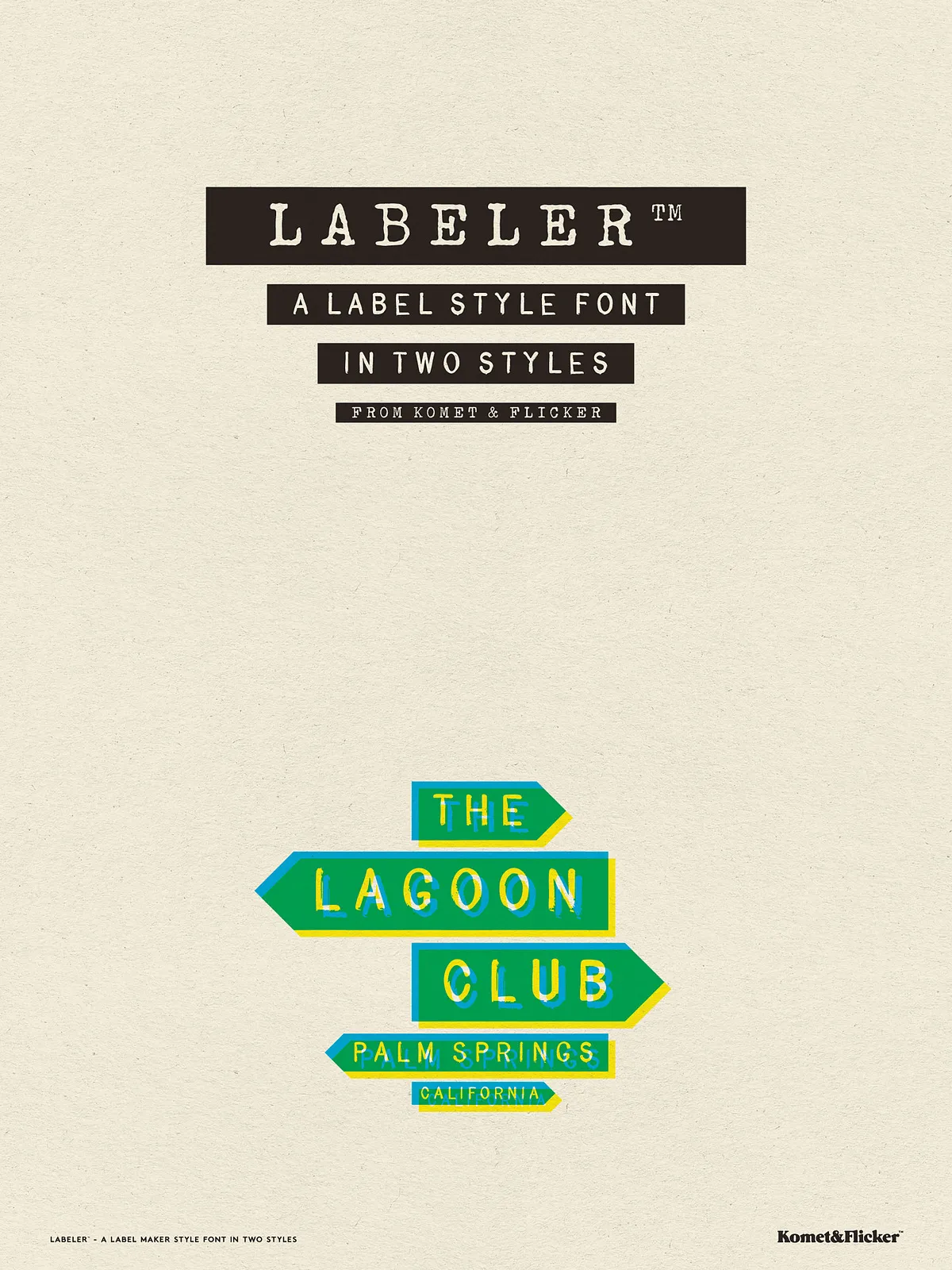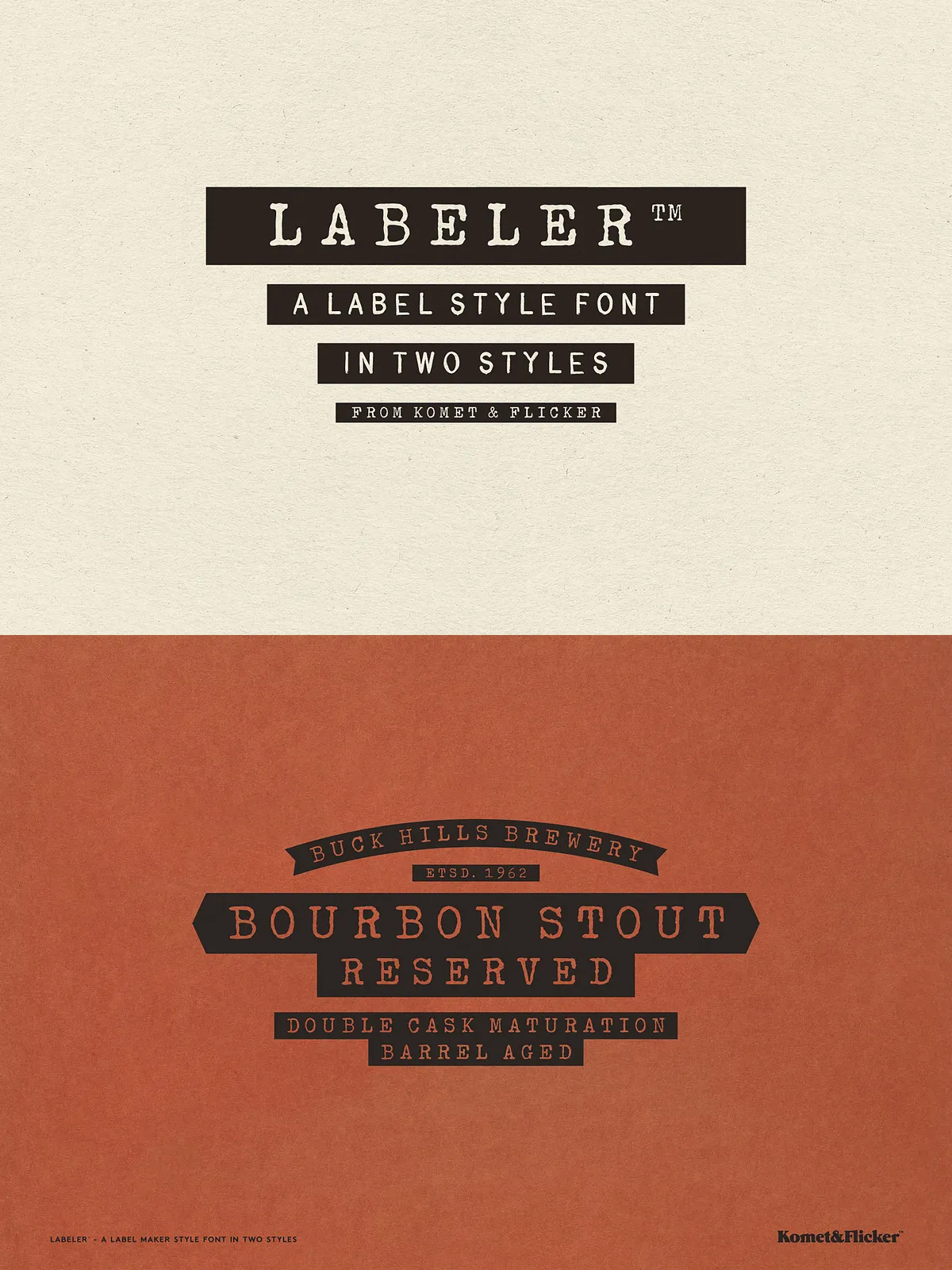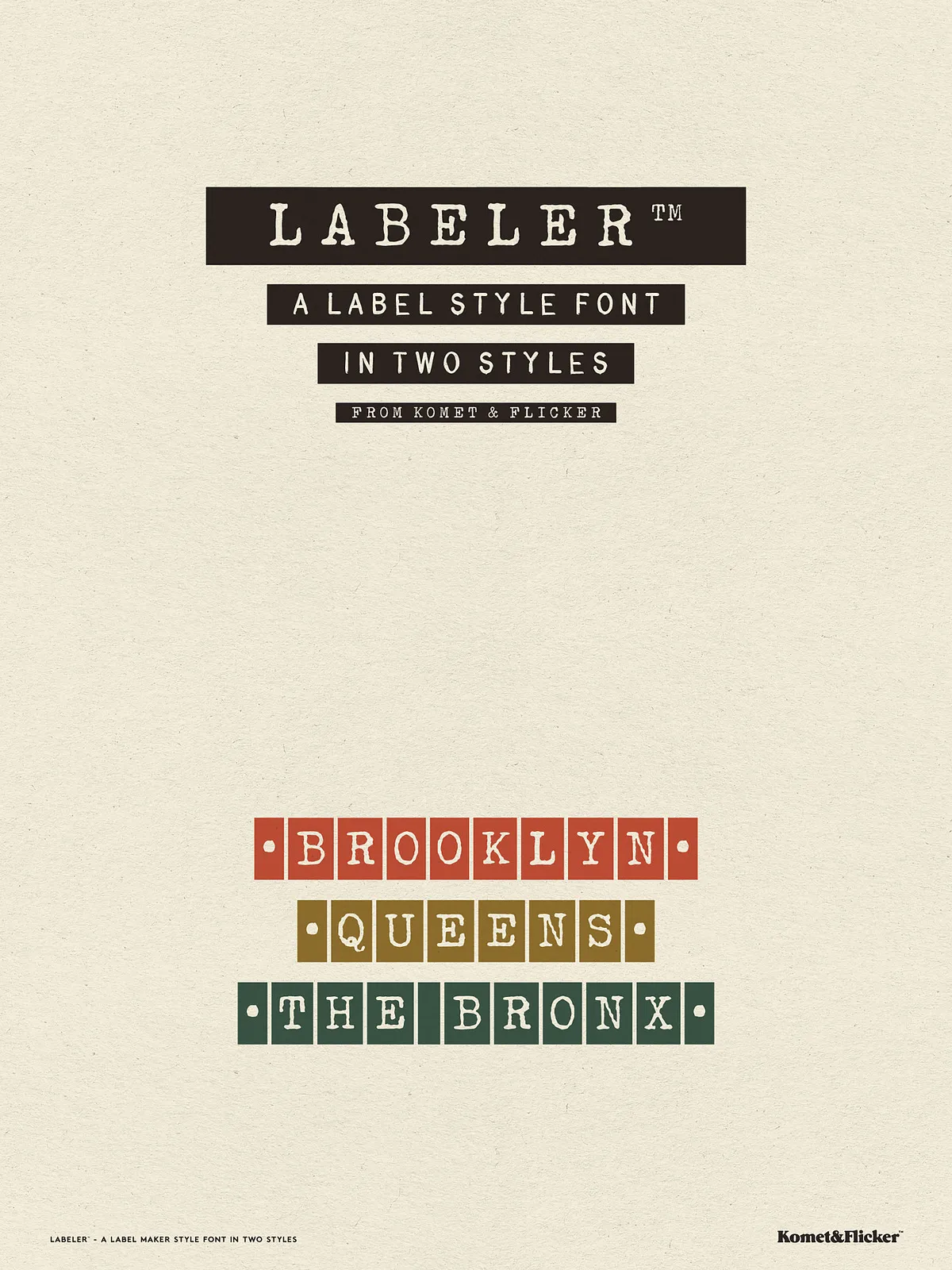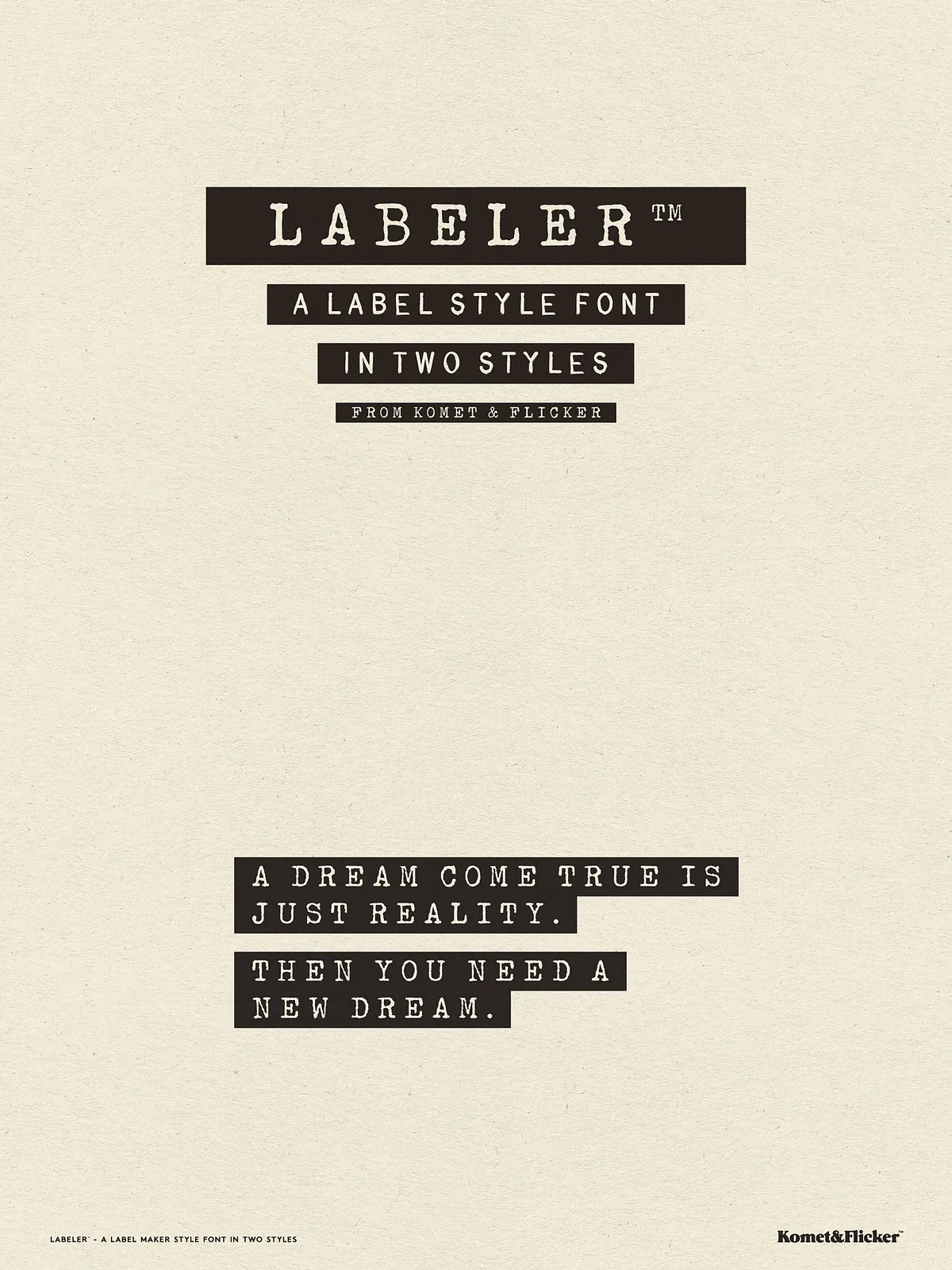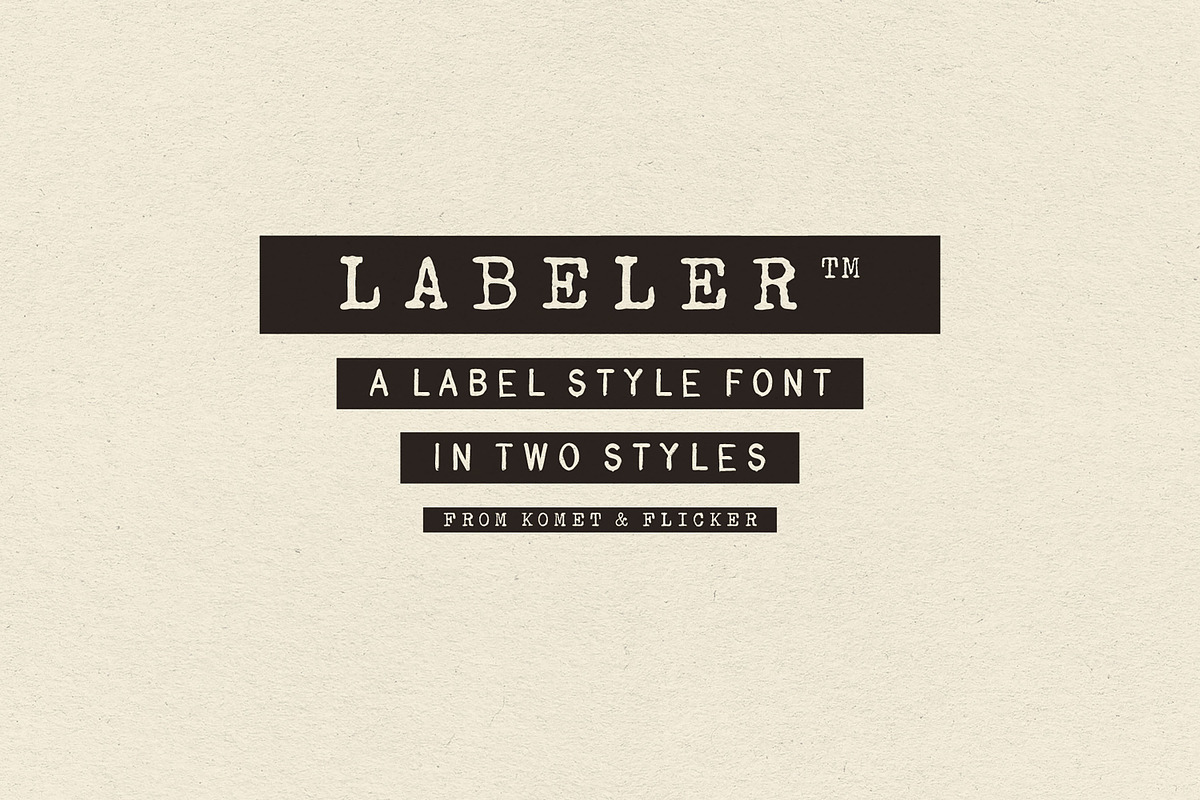

Labeler channels the iconic embossed-tape aesthetic of classic labelmaker machines into a versatile digital type system. Designed for clarity and personality, this family offers two distinct yet harmonious styles: a crisp sans serif that echoes the punchy utility of vintage label text, and a rough serif that evokes a worn, typewriter-like surface. Use Labeler to produce immediate, legible headlines or tactile retro compositions that read clearly at display sizes while carrying strong visual character.
Design Characteristics
Two Complementary Styles
The sans serif style emphasizes geometric clarity and even strokes for functional, straightforward labeling and headlines. The serif style introduces subtle roughness and irregular ink textures, producing a tactile, nostalgic voice that works well for packaging, editorial pull-quotes, and retro branding. Both styles share proportional spacing and robust letterforms so you can mix them for hierarchy without sacrificing harmony.
End Cap Glyph System for Custom Banners
Labeler includes a dedicated set of end cap glyphs that let you build custom bannered text blocks and labels without manual vector editing. These end caps snap visually to the start and end of words or phrases so designers can produce sealed, boxed, or bannered labels fast—ideal for product stickers, UI labels, price tags, and badges.
What’s Included
- Full uppercase A–Z basic Latin character set for the primary label voice.
- Numbers, punctuation, and select symbols to support practical label content.
- Pre-made fractions for price and measurement formatting.
- A set of 10 custom banner end-cap glyphs to create sealed or framed labels easily.
Workflow & Accessing Special Glyphs
Accessing Glyphs in Illustrator
Open the Glyphs panel to view and insert the banner end caps and any special glyphs. In Illustrator use the Type → Glyphs panel to place glyphs directly into your layout. For details on Illustrator’s glyph workflow see Adobe’s documentation: [Character sets and alternate glyphs in Illustrator](https://helpx.adobe.com/illustrator/desktop/design-with-text/special-characters-glyphs/about-character-sets-and-alternate-glyphs.html).
Accessing Glyphs in Photoshop
In Photoshop you can open the Glyphs panel via Type → Panels → Glyphs Panel to insert end cap glyphs or alternates. Use the glyphs panel to combine caps and base letters, then scale or align the banner elements as needed for consistent visual weight.
Practical Use Cases
Branding and Packaging
Labeler excels at labels, hang tags, stickers, and packaging where a clear, authoritative label voice is necessary. The sans face reads crisply on adhesive strips and narrow spaces; the serif face adds personality for boutique goods, artisanal food labels, and retro-inspired product lines. Combine styles to produce hierarchy: use sans for item names and serif for subheadings or texture-driven accents.
Web and Interface Labels
Use Labeler for UI labels, status badges, and in-dashboard tags to create fast visual recognition. The strong uppercase set and included numerals make it perfect for compact, utilitarian contexts where quick legibility matters.
Editorial and Decorative Applications
Use the textured serif for pull quotes, section headers, and editorial badges that need a tactile, handcrafted appearance. The banner end caps help produce framed callouts and retro medallions without extra vector work.
Technical Notes & Best Practices
Kerning, Tracking, and Size
For short labels or headlines, use default kerning values; increase tracking slightly when placing multiple words into a single banner to avoid crowding. Test at display sizes first—Labeler preserves texture and contrast best when given room to breathe.
Combining Glyphs for Banners
To build banners, insert a left end cap glyph, type your label text, then insert the right end cap glyph. Adjust baseline or horizontal scale subtly if you need tighter or looser visual fit. When exporting for production, convert type to outlines if you must preserve exact placement across platforms that may not support embedded fonts.
Licensing & Compatibility
Labeler typically ships as OTF/TTF files suitable for desktop and web use. Check the included license file for permitted uses—desktop, webfont, app embedding, and extended commercial licenses may differ by vendor. The fonts work in major design tools (Adobe Creative Cloud, Affinity, Figma, Sketch) and are PUA-friendly if alternates are encoded for easy access.